

The Steam Deck for beginners can feel overwhelming at first glance. Valve’s handheld gaming PC packs serious power into a portable form factor, but getting started doesn’t have to be complicated. This guide covers everything new owners need to know, from initial setup to must-have accessories. Whether someone just unboxed their first Steam Deck or they’re still deciding if it’s right for them, this article breaks down the essentials in plain terms.
Table of Contents
ToggleKey Takeaways
- The Steam Deck for beginners is easy to set up in just 10-15 minutes by following the on-screen wizard and connecting to WiFi.
- Valve offers two models—the LCD and OLED—with the OLED providing better battery life and screen quality for most users.
- Check game compatibility ratings (Verified, Playable, Unsupported) before downloading to ensure smooth gameplay.
- Expand storage with a microSD card (512GB or 1TB with A2 rating) since the Steam Deck’s internal storage fills up quickly.
- Cap your frame rate at 40 FPS and lower graphical settings to significantly extend battery life during long gaming sessions.
- Use Desktop Mode and ProtonDB.com to install non-Steam games and check compatibility reports from other users.
What Is the Steam Deck and Who Is It For?
The Steam Deck is a handheld gaming PC made by Valve, the company behind Steam. It runs a custom Linux-based operating system called SteamOS and plays PC games from a user’s existing Steam library.
Think of the Steam Deck as a Nintendo Switch for PC gamers. It features a 7-inch touchscreen, thumbsticks, trackpads, and familiar controller buttons. Under the hood, it runs an AMD APU capable of playing modern AAA titles at reasonable settings.
The Steam Deck works best for:
- PC gamers who want portable access to their existing game libraries
- Casual players looking for a console-like experience without a traditional gaming PC
- Commuters and travelers who want quality gaming on the go
- Tinkerers who enjoy customizing their hardware and software
Valve currently offers two main versions: the Steam Deck LCD and the Steam Deck OLED. The OLED model has a brighter, more vibrant screen, better battery life, and improved WiFi. First-time buyers on a budget can still find great value in the LCD model, but the OLED is the better long-term investment for most users.
The Steam Deck isn’t a replacement for a high-end gaming PC. It makes compromises on graphical fidelity to maintain portability. But for anyone who values flexibility and convenience, it delivers an impressive experience.
Setting Up Your Steam Deck for the First Time
Setting up a Steam Deck takes about 10-15 minutes. The process is straightforward, even for those new to PC gaming.
Here’s what to expect:
- Charge the device – The Steam Deck ships with some battery life, but charging it fully before the first session prevents interruptions.
- Power on and select language – Press the power button on the top edge. The setup wizard guides users through language and region settings.
- Connect to WiFi – The Steam Deck needs an internet connection to download updates and access the Steam store.
- Sign into Steam – Users need a Steam account. Those without one can create a free account at store.steampowered.com before setup.
- Download system updates – SteamOS updates frequently. The initial update may take several minutes depending on connection speed.
- Set a PIN (optional) – Adding a PIN protects purchases and prevents unauthorized access.
After completing these steps, the Steam Deck displays the main interface. Users can immediately browse the store, download games, or explore settings.
One helpful tip: connect the Steam Deck to a fast WiFi network for the initial setup. Game downloads on the Steam Deck can be large, and a stable connection makes the process much smoother.
Navigating the Interface and Installing Games
The SteamOS interface on the Steam Deck uses a controller-friendly layout called Gaming Mode. It’s designed for thumb navigation, not mouse and keyboard.
The main sections include:
- Library – Shows all owned games, organized by recent activity, installed titles, or collections
- Store – Browse and purchase new games directly from Steam
- Downloads – Monitor active downloads and manage the queue
- Friends – See who’s online and send messages
- Settings – Access system preferences, display options, and audio controls
The Steam button (left side, below the trackpad) opens the main menu from anywhere. The Quick Access button (right side, three dots) opens a sidebar with quick settings for brightness, WiFi, notifications, and performance overlays.
Installing games on the Steam Deck works just like on a desktop:
- Open the Library or Store
- Select a game
- Click Install
- Wait for the download to complete
The Steam Deck shows a compatibility rating for each game. “Verified” titles work perfectly out of the box. “Playable” games work with minor issues or adjustments. “Unsupported” games may not run correctly, though many still work with some tweaking.
Storage fills up quickly on the Steam Deck. Users can expand capacity with a microSD card inserted into the slot on the bottom edge. The Steam Deck formats and manages the card automatically.
Essential Settings and Accessories for New Users
A few settings adjustments improve the Steam Deck experience right away.
Recommended Settings
Enable Performance Overlay – The Quick Access menu includes a performance overlay that displays FPS, battery drain, and temperatures. Level 2 provides useful info without cluttering the screen.
Adjust Screen Brightness – Auto-brightness works well, but manual control helps conserve battery during long sessions.
Set a Frame Rate Limit – Capping games at 40 FPS balances smooth gameplay with extended battery life. The Steam Deck’s 40Hz refresh rate option makes this particularly effective.
Turn On Bluetooth – The Steam Deck supports Bluetooth headphones, controllers, and keyboards.
Must-Have Accessories
MicroSD Card – A 512GB or 1TB card provides ample space for a rotating game library. Look for cards with A2 ratings for faster load times.
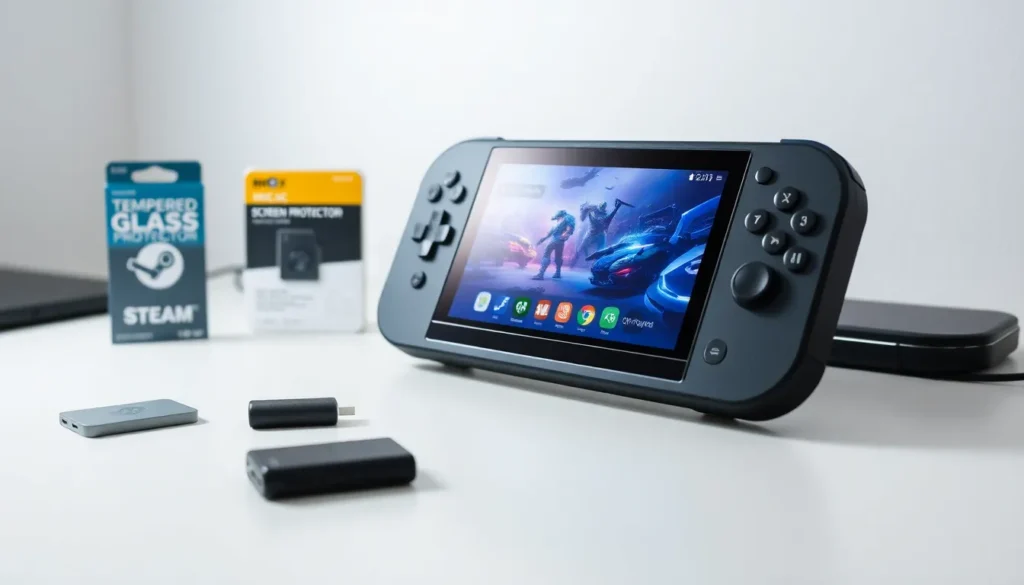
Screen Protector – A tempered glass protector prevents scratches and adds minimal bulk.
Carrying Case – The Steam Deck includes a basic case, but aftermarket options offer better protection and storage pockets.
Dock or USB-C Hub – Connecting the Steam Deck to a monitor or TV turns it into a home console. Valve’s official dock works well, but third-party hubs cost less and perform similarly.
Power Bank – A USB-C power bank rated at 45W or higher extends gaming sessions away from outlets.
These accessories aren’t required, but they make the Steam Deck more versatile and enjoyable for daily use.
Tips for Getting the Most Out of Your Steam Deck
New Steam Deck owners often discover tricks over time. Here are some shortcuts to get ahead faster.
Use Desktop Mode – Hold the power button and select “Switch to Desktop.” This opens a full Linux desktop where users can browse the web, install non-Steam apps, and manage files. It’s also useful for troubleshooting games that don’t work in Gaming Mode.
Add Non-Steam Games – The Steam Deck can run games from other launchers like Epic Games Store, GOG, or even emulators. In Desktop Mode, users can install these applications and add them to their Steam library for access in Gaming Mode.
Check ProtonDB – Proton is the compatibility layer that lets Windows games run on Linux. The website ProtonDB.com shows user reports on how well specific games perform on the Steam Deck. It’s a great resource before buying.
Customize Controls – Every game on the Steam Deck allows custom controller layouts. Users can remap buttons, adjust trackpad sensitivity, and add gyro aiming. Community layouts offer pre-made configurations for popular games.
Manage Battery Life – Demanding games drain the battery in 90 minutes or less. Lowering graphical settings, enabling half-rate shading, and capping frame rates at 30 or 40 FPS extend playtime significantly.
Keep SteamOS Updated – Valve pushes frequent updates that improve performance, fix bugs, and add features. Checking for updates weekly keeps the system running smoothly.
The Steam Deck rewards experimentation. Beginners shouldn’t hesitate to explore settings, try new configurations, and push the device’s capabilities.


