
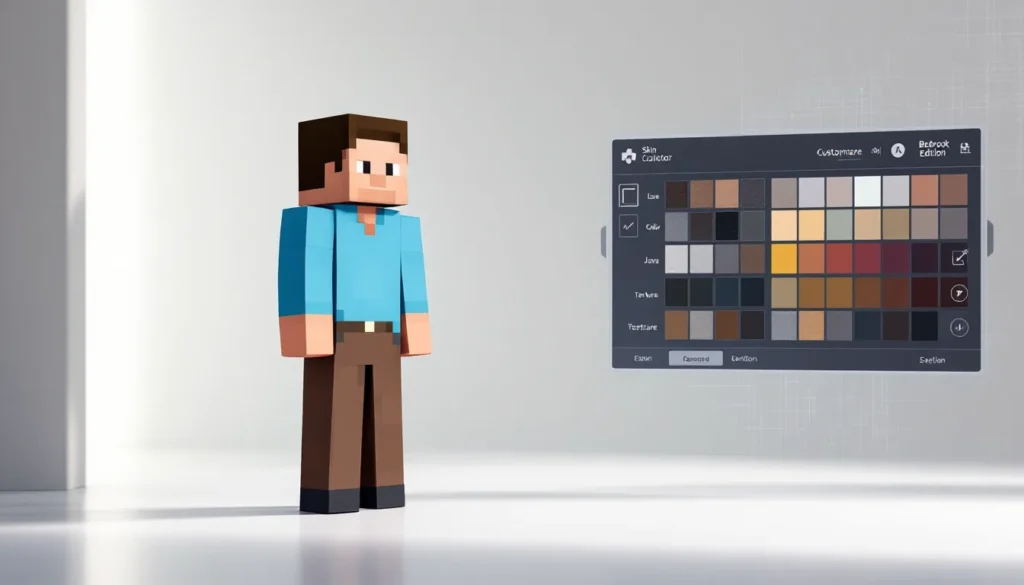

Steve is the face of Minecraft, literally. Whether you’re a newcomer just booting up the game for the first time or a veteran who’s been playing since the early days, the default Steve skin represents something more than just pixels and blocks. It’s iconic, recognizable, and still one of the most used skins across both Java and Bedrock editions in 2026. If you’re wondering how to get Steve, customize him to match your playstyle, or understand why he’s remained relevant even though thousands of alternative skins flooding the marketplace, you’re in the right place. This guide covers everything you need to know about the Minecraft Steve skin, from accessing it on different platforms to creating your own variations and troubleshooting common issues.
Table of Contents
ToggleKey Takeaways
- The Minecraft Steve skin is the iconic default character that remains fully compatible across Java, Bedrock, and all server platforms, making it the most reliable choice for multiplayer gameplay.
- You can customize your Steve skin using free online editors like Nova Skin or Skincraft to modify colors, patterns, and accessories without starting from scratch.
- Competitive players favor the Minecraft Steve skin for its recognizable proportions and minimal visual distractions, which improve focus during intense PvP and speedrunning scenarios.
- Steve’s 64×64 pixel texture map allows for endless variations, from professional esports team colors to fantasy and pop-culture mashups created by the community.
- If you encounter compatibility issues or rendering problems on servers, reverting to the default Steve skin is the first troubleshooting step to resolve syncing and texture errors.
What Is Steve Skin In Minecraft?
The Steve skin is Minecraft’s original default player character model. It’s the blocky, blue-shirted avatar that practically every player encounters on their first launch. Steve represents the game’s minimalist design philosophy, simple geometry, iconic silhouette, instantly recognizable even at a distance.
In gameplay terms, the Steve skin functions identically to any other skin in terms of mechanics. There’s no stat bonus, no hidden advantage: it’s purely cosmetic. But, what sets Steve apart is his cultural weight. He’s the mascot, the standard, the baseline from which all other skins diverge. While Alex (the alternative default skin) tends to be thinner and features a narrower frame, Steve maintains the original blocky proportions that early players remember.
The skin’s 64×64 pixel texture map is divided into distinct regions: the head, torso, arms, and legs. Each part can be customized independently, which is why Steve skins have spawned countless variations. Some players keep Steve completely stock because of nostalgia or simplicity: others use him as a template for creating entirely new looks.
One key distinction: having the Steve skin doesn’t lock you into using it indefinitely. You can swap to any skin at any time through your account settings or launcher, making it a non-committal starting point.
The History And Evolution Of Steve
From The Classic Default To Modern Variants
Steve’s timeline stretches back to Minecraft’s earliest days. Notch (the original creator) didn’t design Steve as a named character: he was simply the default player model, a placeholder that became permanent. In those early builds, Steve was literally the only character players could be, which gave him an unintended authority in the community.
The first major shift happened in 2009-2010 when skins became community-driven. Players started modifying texture files to create alternatives, and Steve variations exploded in popularity. Speedrunners adopted sleeker variants for visual clarity, PvPers chose darker tones for intimidation value, and builders stuck with the classic look to avoid distraction.
In 2015, Minecraft’s big modernization push introduced Alex as an official alternative default skin. Alex was built on a slimmer character model, appealing to players who wanted a visually distinct option. This was a watershed moment, suddenly, Steve wasn’t the only “official” choice, yet his popularity never dipped significantly.
Fast-forward to 2020 and beyond, and Steve skins have become a meta choice in competitive circles. The blocky frame is easy to track visually during intense PvP moments. High-level players often use clean, minimal Steve variations specifically because the familiar proportions reduce cognitive load during fast-paced gameplay.
The 2026 landscape has seen Steve skins evolve into subcategories: retro Steve skins that honor the Indev era textures, professional esports Steve variants with team colors, and mashup skins blending Steve with pop culture figures. Yet the core appeal remains unchanged, Steve represents Minecraft’s authentic soul.
How To Access Steve Skin
Getting Steve On Java Edition
On Java Edition, you start with Steve as your default skin. When you first launch the game post-account creation, Steve is already assigned. If you’ve switched to a custom skin and want to revert to the classic Steve look, the process is straightforward:
- Open the Minecraft launcher and click “Skins” in the top navigation
- Select the “Steve” option from the available defaults (it’ll be listed alongside Alex)
- Confirm the selection
- Launch Minecraft, your character will load as Steve on your next session
Alternatively, if you’re playing on a server or single-player world and have already uploaded a custom skin, you can reapply the default through your launcher settings without affecting your world data. Java Edition stores skin data server-side through your Mojang account, so changing skins anywhere updates across all your worlds.
One important note: Java Edition allows offline play with custom skins, but online multiplayer requires account authentication. Once authenticated, your skin syncs automatically.
Obtaining Steve On Bedrock Edition
Bedrock Edition (Windows 10/11, Xbox, PlayStation, Switch, Mobile) handles skins differently. Steve is still the default character, but the process to access or reclaim him varies slightly by platform.
On Windows 10/11 and mobile:
- Launch Minecraft
- Go to the Character Creator (visible on the main menu)
- Scroll through available skins or search “Steve”
- Select the classic Steve option
- Confirm and return to gameplay
On console (PlayStation, Xbox, Nintendo Switch):
- Start the game and navigate to “Profile”
- Select “Edit Character”
- Browse available skins in the library
- Choose Steve from the default skins section
- Apply and save
Bedrock stores skins in the cloud through your Microsoft account, so switching skins on any device updates everywhere you play (as long as you’re signed in). This differs from Java’s model and can sometimes cause brief sync delays on slower connections.
Customizing Your Steve Skin
Using Skin Editors And Tools
If you want to tweak Steve without starting from scratch, skin editors are your best friend. These tools let you modify the texture map directly in your browser or as a standalone application.
Popular editors include:
- Minecraft Skin Editor (official tool via Minecraft.net), directly integrated into your account, no download needed
- Skincraft (browser-based), drag-and-drop interface, supports importing existing skins
- Nova Skin (browser-based), advanced layer system, 3D preview, community gallery
- Mineways, focus on converting 3D models into skin format
Using these tools, you can:
- Change Steve’s shirt color (the torso texture)
- Add patterns or logos to his chest or arms
- Modify his face or add accessories like hats
- Adjust skin tone or add gradients
- Create team-themed variants (e.g., red Steve for one faction, blue for another)
The workflow is simple: upload the default Steve skin file (or generate one from the editor), make pixel-by-pixel edits, and export as a PNG. Then upload that PNG to your account via the Minecraft launcher (Java) or Character Creator (Bedrock).
One pro tip: always work in layers if your editor supports it. This lets you adjust individual elements without destroying underlying details.
Creating Custom Steve Variations
For more ambitious projects, you can build a Steve skin from the ground up using dedicated art software. Photoshop, GIMP (free), or even Aseprite (pixel-art focused) work well for this.
Start with the 64×64 canvas and the texture layout: front face (8×8 pixels), back face, front torso (8×12), back torso, arms, and legs. Many creators download a blank template from sites like Game8 to ensure proper proportions.
Common custom Steve variations include:
- Professional/Esports skins: Team colors, sponsor logos, minimal detail to reduce visual noise
- Retro skins: Indev-era textures with lower contrast and softer lines
- Themed skins: Steve dressed as a specific character, in medieval gear, or with sci-fi elements
- Minimalist skins: Ultra-clean solid colors with barely visible features
The most important rule: stay within the 64×64 constraint (newer versions support 128×128, but not all servers accept them). Test your skin on a test server or in single-player before uploading it as your main character.
When you’ve finished your custom Steve variant, export it as a PNG file with transparency, then upload it to your account. Changes take effect within minutes on Java Edition, though Bedrock can take slightly longer to sync.
Popular Steve Skin Variants And Trends
Professional And Competitive Steve Skins
The competitive Minecraft scene, spanning PvP tournaments, speedrunning events, and esports competitions, has embraced customized Steve variants as part of team and personal branding.
Why Steve specifically? Competitive players favor him because his proportions are instantly recognizable, reducing the mental load during high-intensity gameplay. In a heated 1v1 duel or a speedrun, visual clarity matters. A clean, minimal Steve skin removes distractions.
Top speedrunners often use one of these variants:
- Classic Steve (completely stock), nostalgia factor, zero pixel ambiguity
- Darker Steve, high contrast against lighter terrain for tracking movements
- Single-color Steve, removes all pattern details for maximum clarity
Organized esports teams (like Noxcrew, Team Avolition, and various competitive guilds) commission custom Steve skins with team colors or logos. These serve as visual identifiers and team cohesion tools. A tournament stream showing five players in matching red-and-gold Steve variants immediately communicates team unity.
Resources like IGN’s gaming guides occasionally feature professional player showcases that highlight their preferred skin choices, giving insight into why specific Steve variants gain traction in the pro circuit.
Community-Created Steve Mashups
The creative community has taken Steve and fused him with every imaginable IP and concept. These mashups fall into several categories:
Pop Culture Mashups: Steve dressed as Spider-Man, in anime character outfits, or as famous movie characters. These are wildly popular on servers but often violate IP if uploaded publicly to official launchers.
Game Crossovers: Steve in Dark Souls armor, as a Terraria character, or wearing gear from other franchises. The Minecraft community has a particular affinity for mashups with other block-based or voxel games.
Fantasy/Sci-Fi Variants: Steampunk Steve (goggles, brass fittings), cyberpunk Steve (neon accents, tech vibes), medieval knight Steve, or wizard Steve. These thematically match survival or adventure builds.
In-Joke Skins: Community skins that reference memes, server lore, or running jokes. Many vanilla SMP (Survival Multiplayer) servers feature custom Steve variants created for specific seasons or events.
The barrier to entry for mashup skins is low, a basic understanding of pixel art and access to a free editor is enough. The catch is distribution: unofficial mashups can’t be uploaded to the official Minecraft launcher if they use copyrighted characters, so they’re typically shared through community forums, Discord servers, or private downloads via platforms like Nexus Mods.
Comparing Steve To Other Default Skins
Steve Vs. Alex: Which Should You Choose?
The Steve vs. Alex question is practically a meme in the Minecraft community at this point, but there are genuine practical differences worth understanding.
Steve’s physical characteristics:
- Broader shoulders, thicker arms (4-pixel width per arm)
- More blocky overall silhouette
- Iconic blue and brown color scheme
- Wider stance, more imposing appearance
Alex’s characteristics:
- Narrower shoulders, thinner arms (3-pixel width per arm)
- More refined, less bulky frame
- Faster movement feel (psychological, not mechanical, speeds are identical)
- Often preferred by players who want a less “default” appearance
For PvP and competitive play: Steve’s broader frame makes him slightly easier to track visually during combat. His movements feel weightier, which some players find more responsive. But, this is cosmetic, both skins have identical hitboxes and mechanics.
For creative/building: Alex offers visual distinction, so if you’re leading tours or building on public servers, Alex stands out more. Steve blends into the scenery in ways that Alex doesn’t.
For aesthetics: This is purely personal. Steve evokes classic Minecraft vibes: Alex feels modern and sleek. Speedrunners are split almost 50/50, with personal preference and muscle memory being the deciding factors.
Crossover skins: Most custom Steve and Alex variants exist independently. You won’t find many mashup skins split between the two, creators typically pick one template and build from there. This means if you have a favorite character mashup, you might only find it available as Steve (or Alex, but not both).
The genuine answer: choose based on visual preference and whether you prioritize tradition (Steve) or distinctiveness (Alex). Mechanically, there’s zero disadvantage either way.
Steve Skin In Multiplayer And Servers
Compatibility Across Different Platforms
One of Steve’s greatest strengths is universal compatibility. Unlike some custom skins that break rendering on specific platforms, the default Steve skin works everywhere, Java, Bedrock, servers, realms, and third-party hosting.
Cross-platform syncing:
- Java Edition: Skin data stored server-side, syncs across all offline worlds and multiplayer servers
- Bedrock Edition: Cloud-synced through Microsoft account, consistent across Windows, Xbox, PlayStation, Switch, and mobile
- Third-party servers: Custom server implementations (like Spigot or Paper on Java) respect the official skin database, so Steve renders correctly even on modded servers
What breaks custom skins (but not Steve):
- Outdated servers running pre-1.8 Java versions may not recognize certain custom skins
- Some console servers have stricter content policies and reject skins with questionable imagery
- Mobile-exclusive servers sometimes have limited skin library access
Steve bypasses all these issues. He’s the baseline, the fallback, the skin that never causes rendering errors or compatibility headaches.
For multiplayer specifically: If you’re joining a server you’ve never played on before, Steve is the safest choice. Public servers hosted on platforms like Realms or standard Spigot implementations always support Steve without question. If you’ve uploaded a custom skin and encounter issues (the skin doesn’t appear or renders as a default), switching back to Steve is the first troubleshooting step.
On vanilla servers (official Minecraft servers), Steve is obviously fully compatible. On modded servers (Forge, Fabric, etc.), compatibility depends on whether the server’s mod configuration interferes with skin rendering. Again, Steve rarely triggers these issues because he’s the baseline texture.
Pro tip: if you’re experiencing unexpected hitbox detection or visual glitches in multiplayer, verify your skin is synced correctly. Sometimes custom skins fail to upload properly, and the server reverts to a backup. Reapplying Steve and then reapplying your custom skin often fixes the issue.
Troubleshooting Steve Skin Issues
Common Problems And Solutions
Steve skin won’t apply:
- Cause: Account authentication lag or cached launcher
- Solution: Log out of the launcher completely, close it, wait 30 seconds, and relaunch. Re-apply Steve skin. For Bedrock, force-close the app and restart
Steve appears invisible or as a purple/black texture:
- Cause: Corrupted skin file or mismatched texture resolution
- Solution: Delete the skin from your account settings and reapply the default. If issues persist, try a full launcher cache clear (delete the “.minecraft” folder’s contents or the Bedrock data folder, then restart)
Multiplayer servers show a different skin than your local single-player:
- Cause: Skin hasn’t synced to the server or the server uses a cached version
- Solution: Change to any other skin, then switch back to Steve. Wait 5-10 minutes for cloud sync on Bedrock: Java syncs faster but sometimes requires a launcher restart
Custom Steve variant won’t upload:
- Cause: File size, resolution, or PNG format issues
- Solution: Ensure the PNG is exactly 64×64 pixels (or 128×128 if your launcher supports it). Compress the file if it exceeds size limits. Use a dedicated PNG converter if the image corruption warning appears
Steve looks blocky/pixelated compared to other players’ skins:
- Cause: Your graphics settings are on “Fast” or view distance is minimal
- Solution: Increase graphics quality in Video Settings. This doesn’t affect the skin itself, just how it renders
When To Use Default Steve Over Custom Skins
Not every situation calls for a custom skin. There are legitimate reasons to stick with or revert to the default Steve:
Compatibility-first scenarios:
- Joining new servers or public realms for the first time
- Playing on heavily modded servers where custom skin compatibility is uncertain
- Testing if a multiplayer issue is skin-related
- Playing on restricted servers (like educational servers) with skin whitelists
Competitive situations:
- Official tournaments often provide skin standards or restrictions
- Some speedrunning communities have “vanilla only” rules
- PvP arenas may cap skin complexity to reduce server load during matches
Aesthetic simplicity:
- Building and showcasing builds without visual distraction
- Streaming when you want focus on the gameplay, not cosmetics
- Teaching or leading multiplayer tours where uniformity helps with clarity
Practical testing:
- Troubleshooting hitbox or rendering issues
- Verifying account syncing without the variables of custom skins
- Setting a baseline before applying more complex variants
Steve’s strength is that he’s never the wrong choice. While custom skins offer personality, Steve offers reliability, recognition, and zero friction. Many veteran players rotate between their favorite custom skin and default Steve depending on the context, appreciating Steve’s versatility.
Conclusion
The Minecraft Steve skin represents far more than a simple cosmetic choice. It’s the foundation of Minecraft’s visual identity, the character players recognize instantly whether they’ve played for an hour or a decade. Understanding how to access, customize, and troubleshoot Steve skins equips you to make informed decisions about your in-game appearance across Java, Bedrock, and every server in between.
Whether you’re sticking with the iconic default look for its simplicity and reliability, creating a custom variation that matches your playstyle, or bouncing between Steve and other skins depending on context, the knowledge in this guide covers the essentials. Steve’s enduring popularity in 2026, even with thousands of alternatives available, speaks to the power of simplicity and authenticity.
The next time you load Minecraft as Steve, you’ll recognize him not just as a blocky avatar, but as the baseline that shaped the game’s entire cosmetic ecosystem. And if you decide to modify him, you’ll have the tools and techniques to make him entirely your own.


