
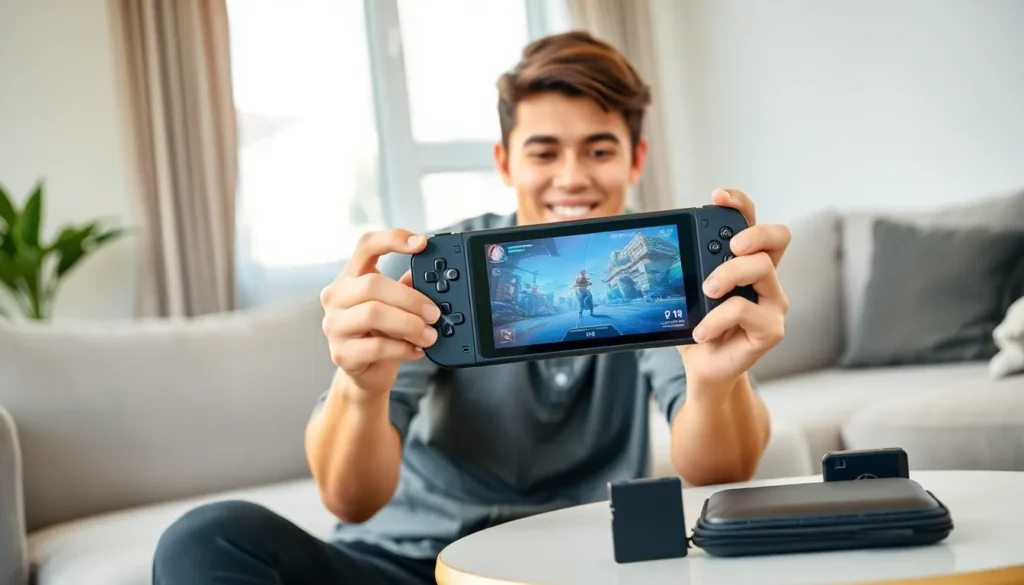

The Steam Deck changed handheld gaming when Valve released it in 2022. This portable PC runs full desktop games, but many owners don’t use its features to their full potential. These Steam Deck tips will help players squeeze more performance, storage, and enjoyment from their device. Whether someone just unboxed their Deck or has owned one for months, these strategies make a real difference in daily use.
Table of Contents
ToggleKey Takeaways
- Extend battery life by lowering the refresh rate to 40Hz, capping frame rates, and reducing screen brightness through the Quick Access Menu.
- Customize per-game controller profiles and use the four back buttons to improve gameplay without lifting your thumbs off the sticks.
- Expand storage affordably by adding a high-speed microSD card (up to 1TB) or replacing the internal SSD for more demanding libraries.
- Install non-Steam games using tools like Heroic Games Launcher, Lutris, or EmuDeck to access Epic, GOG, and classic console titles.
- Enhance your Steam Deck experience with accessories like docking stations, protective cases, and 65W power banks for extended portable play.
Optimize Your Battery Life
Battery life remains the Steam Deck’s biggest limitation. The device lasts anywhere from 90 minutes to 8 hours depending on what’s running. Smart settings adjustments extend playtime significantly.
Lower the Screen Refresh Rate
The Steam Deck supports 40Hz, 60Hz, and custom refresh rates. Dropping from 60Hz to 40Hz saves considerable power while still looking smooth. Many games run perfectly at 40fps, and the visual difference is minimal for most players.
Cap Your Frame Rate
Matching the frame rate cap to the refresh rate prevents the GPU from working harder than necessary. A 40fps cap paired with a 40Hz display creates a balanced experience that preserves battery. Players can access these Steam Deck tips through the Quick Access Menu by pressing the three-dot button.
Reduce Screen Brightness
The display draws substantial power at full brightness. Keeping it between 50-70% extends sessions noticeably. In darker environments, even lower settings work fine.
Enable Half Rate Shading
This experimental feature in the Quick Access Menu reduces GPU load by rendering certain effects at half resolution. Some games show minimal visual impact while gaining significant battery savings. It’s worth testing on a per-game basis.
These Steam Deck tips for battery optimization can add 1-2 hours of playtime to demanding titles.
Customize Your Controls and Settings
The Steam Deck offers extensive control customization that most players underutilize. Valve built an impressive system for remapping every input.
Use Per-Game Controller Profiles
Each game can have its own control layout. Players access this through the controller icon in the Quick Access Menu. Community profiles often exist for popular titles, saving setup time. Someone else has probably already figured out the ideal Steam Deck tips for that specific game’s controls.
Master the Back Buttons
Four programmable back buttons sit on the Deck’s grip. These work brilliantly for actions that normally require taking thumbs off the sticks, like jumping, reloading, or crouching. Mapping frequently used actions here improves gameplay in shooters and action games.
Customize Trackpad Behavior
The trackpads support multiple input modes: mouse, joystick, scroll wheel, and more. For strategy games or anything requiring cursor precision, setting the right trackpad to mouse mode transforms the experience. Players can adjust sensitivity, haptic feedback intensity, and dead zones.
Adjust Gyro Controls
Gyroscopic aiming adds precision to shooter games. The Steam Deck tips here involve setting gyro to activate only when touching the right stick or right trackpad. This prevents unwanted movement during regular play while enabling fine-tuned aiming when needed.
Expand Your Storage Options
Modern games eat storage quickly. A single AAA title might consume 100GB or more. The Steam Deck supports several expansion methods.
Add a MicroSD Card
The easiest upgrade involves inserting a microSD card into the slot on the bottom edge. Cards up to 1TB work without issues. A high-speed A2-rated card provides performance close to the internal SSD for most games. This Steam Deck tip costs around $80-120 for a quality 512GB card.
Replace the Internal SSD
More adventurous owners can swap the internal 2230 M.2 SSD. This requires opening the device, but Valve designed it to be user-serviceable. A 1TB or 2TB replacement dramatically increases available space. iFixit sells replacement SSDs specifically sized for the Deck.
Manage Multiple Libraries
Steam lets players designate which drive stores each game. Keeping frequently played titles on the internal SSD while storing others on the microSD card balances speed and capacity. The Steam Deck tips for storage management include moving games between drives through the game’s properties menu.
Install Non-Steam Games and Emulators
The Steam Deck runs Linux, but it handles far more than Steam’s library. Players can expand their options substantially.
Add Games From Other Launchers
Desktop Mode provides access to the full Linux environment. Applications like Heroic Games Launcher install Epic and GOG games. Lutris handles other platforms. Once installed, players add these games to Steam as non-Steam games, making them accessible from Gaming Mode.
Set Up Emulation
EmuDeck simplifies emulator installation dramatically. This tool configures multiple emulators with optimized Steam Deck tips and settings already applied. Players can run games from classic consoles including PlayStation 2, GameCube, Switch, and older systems. Legal ROMs from owned games work through the Steam interface.
Run Windows Games Through Proton
Valve’s Proton compatibility layer runs most Windows games on the Deck’s Linux system. ProtonDB.com shows compatibility ratings for thousands of titles. Many games marked “Gold” or “Platinum” run flawlessly without additional tweaking.
Essential Accessories Worth Considering
Several accessories enhance the Steam Deck experience without very costly.
Protective Cases
The included carrying case protects during transport, but a silicone skin adds grip and protects from drops during play. Companies like dbrand and Spigen offer quality options. A screen protector prevents scratches on the display.
Docking Stations
Valve’s official dock or third-party alternatives connect the Deck to monitors, keyboards, and mice. This transforms it into a desktop gaming PC. USB-C hubs with HDMI output, USB ports, and Ethernet cost between $30-80 and work well for most Steam Deck tips around desktop use.
External Controllers
Bluetooth controllers pair easily for docked play or passing the Deck around. The DualSense, Xbox controllers, and 8BitDo products all connect without issues.
Power Banks
A 65W USB-C power bank extends sessions during travel. Players should look for banks with Power Delivery support rated at 45W or higher for effective charging while playing.


