
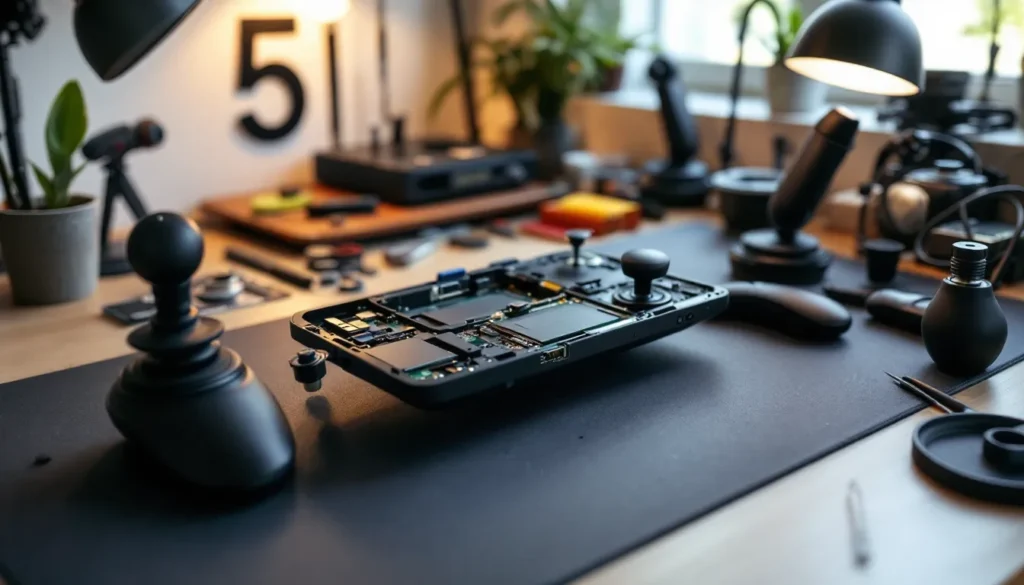

The Steam Deck has revolutionized portable gaming, but like any handheld hardware, it’s not invulnerable to wear and tear. Joystick drift creeping in after 200 hours of gameplay. A battery that won’t hold a charge like it used to. A screen that flickers at the worst possible moment. These problems don’t automatically mean your handheld is a paperweight, many of them can be diagnosed and fixed with a bit of patience and the right approach.
This guide walks through everything a Steam Deck owner needs to know about diagnosis, DIY troubleshooting, and when to actually shell out for professional repairs. Whether the issue is fixable at home with basic tools or requires sending it to Valve’s service center, this breakdown covers the path forward. The goal is saving money and minimizing downtime without making things worse.
Table of Contents
ToggleKey Takeaways
- Steam Deck repair for common hardware issues like joystick drift, battery degradation, and charging failures can often be diagnosed and fixed at home with basic tools and affordable replacement parts.
- Before disassembling your Steam Deck, perform software troubleshooting including SteamOS updates, factory resets, and controller calibration to resolve many issues without physical repairs.
- Proper disassembly requires a static wrist strap, correct Torx screwdrivers (T5 and T3), and patience to safely access components like joysticks, batteries, and displays without causing damage.
- Joystick replacement is the easiest and most common Steam Deck repair, costing $20–30 for official parts, while screen replacement requires more precision and is best suited for experienced users or professionals.
- Preventive maintenance including proper storage, capped frame rates, regular cleaning, and periodic battery health checks can extend your Steam Deck’s lifespan to 3–4 years of heavy use.
- Choose professional repair services if your device is under warranty, the issue involves multiple components, or you lack tools and confidence, though third-party shops often offer faster turnaround than Valve’s official service.
Understanding Common Steam Deck Hardware Problems
The Steam Deck runs Valve’s SteamOS, a Linux-based operating system optimized for gaming on modest specs. The hardware itself, the APU, controllers, battery, and display, is built tough, but certain components are more prone to failure than others.
Joystick Drift and Control Issues
Joystick drift is the single most common hardware complaint among Steam Deck users. After 500–2,000 hours of use (depending on playstyle and intensity), the analog stick’s potentiometer, the sensor that reads stick position, begins to degrade. This causes the character to move slightly without touching the stick, making precision aiming or platforming nearly impossible.
Why does it happen? Mechanical friction, dust accumulation inside the stick mechanism, and the constant micro-movements during gameplay all contribute. It’s not a design flaw unique to Steam Deck: PlayStation, Xbox, and Nintendo controllers all experience this eventually. The good news: joystick drift on the Steam Deck is one of the easiest repairs to perform at home.
Other control issues include unresponsive buttons, sticky D-pad, and shoulder button failures. These typically indicate either mechanical wear, dirt buildup, or internal contact corrosion.
Battery and Charging Problems
The Steam Deck’s battery is a 50Wh lithium-polymer cell rated for 400–500 full charge cycles. After 18–24 months of regular use, battery capacity naturally degrades by 10–20%. That’s normal. What’s not normal is rapid capacity loss, failure to charge at all, or the device suddenly shutting down at 20% remaining.
Charging failures often stem from one of three sources: a faulty USB-C charging port (loose connection or internal damage), a degraded power adapter, or a battery that’s reached end-of-life. The Steam Deck’s charging port is a common weak point under heavy use, especially if the device is jostled while plugged in or if non-official chargers are used.
Battery swelling is rare but serious. If the battery physically expands and lifts the back panel off the device, stop using it immediately and seek professional repair. A swollen battery is a fire hazard.
Screen and Display Failures
The Steam Deck’s 7-inch LCD display (or OLED on the newer model) can suffer from several issues: dead pixels, ghosting, discoloration, and complete backlight failure. Dead pixels and minor ghosting are cosmetic but won’t get worse. A completely dark screen or no backlight usually points to either a failed display panel or a disconnected display ribbon cable.
Screen damage can come from drops, extreme heat, or manufacturing defects. Unlike joysticks or batteries, screen replacement requires more care and precision during disassembly.
Audio and Speaker Malfunctions
The Steam Deck has stereo speakers on either side of the device. Audio issues typically appear as muffled sound, one speaker working while the other is silent, or no audio output at all even with volume maxed.
Problems here usually involve loose speaker connections, debris blocking the speaker grilles, or water damage (if the device was exposed to moisture). The good news: speaker connections are among the easiest components to reseat during disassembly.
DIY Troubleshooting Steps Before Major Repairs
Before cracking open the case or ordering replacement parts, run through basic software and hardware diagnostics. Many issues, especially those related to controls, battery recognition, and audio, can be resolved without physical repair.
Performing a Factory Reset and Software Check
Start by updating SteamOS to the latest version. Valve releases patches regularly that fix stability issues, improve controller detection, and optimize battery management. Plug in the Steam Deck, head to Settings > System > System Update, and check for any pending updates.
If problems persist, perform a factory reset. This wipes all user data and returns the device to factory settings. Go to Settings > System > Reset Options > Reset to Factory Settings. This clears corrupted configs that might be causing false errors or input lag.
Restart the device at least once after the reset before testing functionality. Some users report that controller recognition issues disappear entirely after a factory reset combined with recalibration.
Calibrating Your Controls and Detecting Firmware Issues
The Steam Deck has built-in controller calibration tools. If stick drift is mild or the joysticks feel off-center, the first fix to try is recalibration. Go to Settings > System > Calibration and run through the stick calibration routine. The system will guide you through several input tests and adjust sensitivity.
If joystick drift returns immediately after calibration, the stick hardware itself is likely worn and needs physical replacement. But, if recalibration fixes the issue temporarily, it buys time before replacement is necessary.
For button or trigger issues, test them in the controller diagnostics menu: Settings > System > Controller Options > Calibration. This displays real-time input readings. If a button shows input without being pressed, a reset usually resolves it. If the button continues to register false inputs, the switch itself may be failing.
Testing Battery Health and Charging Connections
The Steam Deck doesn’t display detailed battery health stats in the UI like some other devices do, but users can check capacity through SteamOS diagnostics. Plug in a display cable and enter Desktop Mode (hold the power button, select Switch to Desktop). Open a terminal and run:
upower -i /org/freedesktop/UPower/devices/battery_BAT0
This shows current capacity, voltage, and health percentage. If capacity is below 80% after less than a year of use, the battery is degrading faster than expected and may warrant replacement.
For charging issues, first confirm the USB-C port isn’t loose. Gently wiggle the charging cable while the device is powered off. If the charging indicator appears and disappears with slight movements, the port has internal damage and needs professional service.
Try a different USB-C power adapter (use a 45W or higher PD charger) to rule out a faulty power supply. If charging works with an alternative adapter, the original charger is the culprit.
How to Safely Disassemble Your Steam Deck
Opening the Steam Deck requires patience, the right tools, and a static-safe environment. Rushing the process or using wrong-sized screwdrivers risks stripping screws, bending connectors, and damaging sensitive components. Valve does sell parts and provides repair documentation, making DIY repairs more accessible than on closed competitors’ devices.
Essential Tools and Safety Precautions
Gather these items before starting:
- T5 Torx screwdriver (for external case screws)
- T3 Torx screwdriver (for internal component screws)
- Plastic pry tool or spudger (never use metal, which can short circuits)
- Static wrist strap (critical for protecting components from electrostatic discharge)
- Thermal pads (if replacing components that require them)
- Tweezers (for handling ribbon cables and small connectors)
- Flashlight or headlamp (the interior is tight and dark)
- Clean workspace (preferably a cloth mat to prevent dust contamination)
Before opening the device, power it off completely and disconnect all cables. Ground yourself by wearing a static wrist strap connected to a grounded surface, or frequently touch a metal case or radiator to dissipate static charge.
Keep screws organized. Use a magnetic parts tray or label small containers. Write down the removal sequence if it’s your first time, reassembly is easier when you know the order.
Step-by-Step Disassembly Process
Step 1: Remove the back panel. Unscrew the two T5 screws on the back. Gently pry the back panel away from the device using a plastic spudger. Work slowly around the edges: the panel clips into grooves and will release with steady pressure.
Step 2: Disconnect the battery. This is the first thing to do after opening. The battery connector is a small white plug near the top center. Gently pull it straight away from the board. Never proceed with the device open while the battery is connected, this risks accidental shorts.
Step 3: Remove the trackpad covers and trigger springs (if working on those areas). The right trackpad has a ribbon cable: carefully disconnect it before removal. The trigger springs are held by small screws and can slide out once freed.
Step 4: Disconnect the display ribbon cable (if replacing the screen). This is a delicate step. The ribbon cable is held in a ZIF (zero insertion force) connector. Gently lift the small black lever away from the cable to release tension, then carefully slide the ribbon out.
Step 5: Access the component you’re replacing. For joysticks, unscrew the bracket holding each stick and slide the stick’s ribbon cable out of its connector. For the battery, disconnect the connector (already done in Step 2) and unscrew the battery bracket. For speakers, locate the speaker connector near the back panel area and unplug it.
Step 6: Document your work. Take photos at each stage, especially of ribbon cable positions and connector orientations. This makes reassembly exponentially easier.
Identifying and Addressing Component-Specific Issues
Once open, visually inspect components for obvious damage: burnt spots, swollen batteries, corroded connectors, or loose cables.
For joystick issues, pull the analog stick module straight out and examine the potentiometer contacts. If the contacts look dirty or oxidized, gentle cleaning with isopropyl alcohol on a cotton swab sometimes restores function. If the potentiometer is damaged, replacement is necessary.
For battery problems, check the connector for corrosion or debris. If the battery itself has expanded (even slightly), replace it immediately, don’t risk it.
For screen issues, start by reseating the display ribbon cable. Power on the device and check if the issue persists. If it does, the display panel itself is likely faulty and requires replacement.
For speaker problems, check the speaker connectors. A loose cable is the easiest fix, simply reseat it firmly until you hear a click.
Replacing Common Parts: Joysticks, Batteries, and Screens
Once a component is identified as faulty, replacement is straightforward if you source the right parts and follow best practices during installation.
Where to Source Replacement Parts
Valve sells official Steam Deck replacement parts through its service portal, including joystick modules, batteries, and display panels. Prices are reasonable: joysticks run $20–30 each, batteries $50–70, and screens $100–150. Official parts come with thermal pads pre-applied where needed, simplifying installation.
Alternative sources include iFixit (certified parts with repair guides), AliExpress, and specialty gaming retailers. Third-party parts are often cheaper but quality varies. Stick with vendors who specialize in gaming hardware and have strong reviews.
When ordering joystick replacements, confirm you’re buying the correct model, the original v1 Steam Deck uses different sticks than the newer OLED or LCD revisions. Mixing them up won’t fit.
Installation Best Practices for Each Component
Joystick Replacement: After disassembly and removal of the old stick, align the new stick’s ribbon cable with the connector. Insert the cable into the ZIF connector, press down gently until it clicks, and screw the bracket back into place. Test stick movement before closing the device, push the joystick through its full range and confirm smooth operation and no binding.
Battery Installation: Align the new battery with the bracket (the battery connector should be accessible without forcing). Screw the bracket into place, then plug the battery connector into the motherboard. Double-check the connection is secure before reassembling. Don’t skip this step, a loose battery connector can drain quickly or fail to charge.
Screen Replacement: This is the most delicate component. After removing the old display, carefully align the new display’s ribbon cable with the ZIF connector. Insert the cable partway, then flip the connector lever down to lock it in place. Don’t force the cable, if it’s not sliding smoothly, the angle is wrong. Once locked, the display should sit flush with the frame.
For any component with thermal pads, ensure old pads are completely removed and the surface is clean. Apply new thermal pads according to the manufacturer’s instructions (usually adhesive-backed, pressed firmly into place). Thermal pads improve heat dissipation for components like the battery and power management chips.
Testing Your Repairs After Installation
Before fully reassembling, test the repaired component:
- Joystick: Power on the device and calibrate the sticks. Move them through full range in all directions. If the replacement stick drifts immediately, it’s either defective or improperly installed.
- Battery: Plug in the charger and confirm the charging indicator appears on-screen. Let it charge to 100%, then drain the battery fully to verify capacity. The first charge cycle can take longer than usual.
- Screen: Power on and navigate menus. Check for dead pixels, discoloration, or backlight unevenness. If the screen remains dark, reseat the ribbon cable.
Don’t reassemble if something feels off. Better to catch an installation error now than after the case is sealed.
Once you’re confident the repair is solid, reassemble the device in reverse order: reconnect the battery, reseat any ribbon cables, screw the back panel into place. Power on one final time and stress-test the device for 15–30 minutes. If everything holds, the repair is complete.
When to Seek Professional Repair Services
Not all repairs are realistic for DIY. Some situations call for professional hands, whether through Valve or third-party services.
Warranty Coverage and Official Valve Support
Valve’s standard warranty covers manufacturing defects for one year from purchase. Joystick drift falls under this coverage if it occurs within the warranty period, Valve will repair or replace the device for free. Beyond the warranty, Valve still offers repairs at a cost, though pricing varies by region and the specific issue.
To use Valve’s official repair service, visit the Steam Deck support page and initiate a service request. Provide details about the issue, and Valve will provide shipping instructions. The device ships out, gets diagnosed, repaired, and returns within 2–4 weeks depending on backlog. Costs for out-of-warranty repairs typically range from $75 (simple fixes) to $250 (full device replacement if damage is extensive).
The advantage of official service is Valve handles everything, including parts sourcing, diagnostics, and reassembly. There’s no risk of incompatible parts or improper installation. The downside is turnaround time and lack of control over the process.
Third-Party Repair Shops and Costs
As the Steam Deck has aged, third-party repair ecosystems have matured. Shops like iFixit (which offers mail-in repairs), local electronics repair shops, and gaming-specific repair services now offer Steam Deck work. Third-party shops often have faster turnaround, sometimes same-day or next-day service if the part is in stock.
Costs vary widely: joystick replacement runs $40–80, battery replacement $60–100, and screen replacement $150–250, depending on labor rates and parts sourcing. Some shops bundle diagnostics into the price: others charge separately ($20–40).
When choosing a third-party shop, verify they have experience with Steam Deck repairs. Ask for references or reviews. Confirm they source official or certified parts, not cheap knockoffs. A good shop will provide a warranty on parts (usually 30–90 days) and offer diagnostics before committing to a repair.
Assessing Risk: DIY vs. Professional Repairs
DIY repairs make sense if:
- The issue is clearly identified (joystick drift, loose connector, battery degradation).
- You have steady hands, a clean workspace, and appropriate tools.
- The component is affordable to replace ($20–80) and easy to access.
- You’re comfortable with the risk of accidentally damaging something else during disassembly.
- Turnaround time is critical, you can’t wait weeks for service.
Professional repair makes sense if:
- The device is still under warranty and the issue qualifies for coverage.
- The problem is complex or involves multiple components (water damage, unknown electrical issue).
- The screen or other difficult-to-replace component is damaged.
- You’re uncomfortable with disassembly or lack proper tools.
- You want the peace of mind that comes with warranty support on repairs.
- The repair cost is low enough that the risk/reward calculation favors paying for expertise.
There’s no shame in either choice. Some gamers treat their Steam Deck as a consumable with acceptable risk: others want maximum longevity and prefer professional support.
Prevention Tips to Extend Your Steam Deck’s Lifespan
The best repair is the one you never need. Proactive care extends hardware lifespan significantly and prevents many common issues from developing in the first place.
Proper Storage and Environmental Care
Temperature and humidity are the enemies of electronics. Store the Steam Deck in a cool, dry place, ideally between 50°F and 86°F (10°C–30°C). Avoid leaving it in hot cars, direct sunlight, or damp basements. Extreme heat degrades the battery faster and stresses components. Moisture enables corrosion and shorts.
Use a protective case when transporting the device. A good case absorbs shock and prevents the kinds of drops that cause screen cracks. Hard cases offer better protection than soft sleeves, though they’re bulkier.
Never expose the Steam Deck to liquids. Even “waterproof” gaming devices aren’t truly water-resistant. If the device gets wet, power it off immediately, don’t attempt to charge it, and let it dry in a warm, dry place for at least 48 hours before powering back on. Consider bringing it to a professional if water got into the internals, moisture inside can cause slow corrosion over weeks.
Usage Habits That Reduce Hardware Wear
How the device is used directly impacts how long components last. Aggressive gameplay, the kind that maxes out frame rates and pushes the APU hard, generates more heat and stresses the battery harder. Cooling fans work overtime, and thermal stress accelerates degradation.
To extend lifespan:
- Cap frame rate at 40–60 FPS for most games rather than uncapping at 90+ FPS. The visual difference is minimal, but battery life and thermals improve significantly.
- Avoid prolonged gaming sessions without breaks. Play for 1–2 hours, then give the device 30 minutes to cool down. This prevents thermal buildup.
- Use a cooling accessory if you play demanding games regularly. Clip-on fans or stands with built-in cooling reduce the APU temperature by 10–15°C under load.
- Keep the screen brightness at 40–60%. Lower brightness reduces power draw and extends battery life without sacrificing visibility in most lighting conditions.
- Handle the joysticks gently. Avoid violent stick movements, aggressive mashing, and rapid center-to-edge rotations. Treat the sticks with the respect they’d get on a premium game controller.
Regular Maintenance and Cleaning Routines
Dust and debris accumulate in the speaker grilles, fan vents, and button crevices over weeks of use. Regular cleaning prevents buildup from muffling audio, reducing airflow, and gumming up buttons.
Monthly maintenance steps:
- Wipe the screen with a microfiber cloth (dry, never wet). The glass picks up fingerprints and dust.
- Clean the button crevices with a soft-bristled brush or old toothbrush. Gently brush around the D-pad, buttons, and triggers to dislodge trapped debris.
- Blow out the speaker grilles and fan vents using compressed air (short bursts, not sustained). Never use a vacuum near the device, the static can damage components.
- Inspect the USB-C port for lint or corrosion. If debris is visible, carefully remove it with a toothpick or compressed air. Don’t force anything.
- Check for physical damage (cracks, dents, button sticking). Catching issues early prevents them from worsening.
Every 6–12 months (or annually if heavily used):
- Check battery health using the SteamOS diagnostics. If capacity has dropped below 75%, the battery is approaching replacement age.
- Run a full software update. Valve releases patches regularly that optimize power management and fix stability issues.
- Recalibrate the joysticks even if they feel fine. Preventive calibration can catch early drift before it becomes noticeable.
These habits are low-effort and yield massive returns. A device maintained this way can easily last 3–4 years of heavy use, while a neglected device might fail in 18 months.
Conclusion
Steam Deck repair isn’t intimidating once the process is broken down. Most common hardware issues, joystick drift, battery problems, charging failures, are diagnosable through software checks and fixable with basic tools and affordable replacement parts. The margin between a simple DIY repair and a device sent to a repair shop often comes down to confidence, time availability, and risk tolerance.
Start with troubleshooting. Run the calibration tools, perform a factory reset, check battery health diagnostics. Many issues resolve without opening the device. For physical failures (worn joysticks, damaged screens, swollen batteries), weigh the cost of DIY parts and time against the convenience and warranty backing of professional service. There’s no universally correct choice, it depends on your specific situation.
Regardless of repair path, prevention is always cheaper than cure. Proper storage, sensible usage habits, and regular maintenance keep the Steam Deck running strong for years. A little preventive care now saves money, frustration, and downtime later.
The Steam Deck’s repairability is one of its defining strengths compared to competitors’ closed ecosystems. Valve provides parts, documentation, and service options, honoring the right-to-repair philosophy that gamers increasingly demand. Whether you choose to tackle repairs yourself or hand it off to professionals, that openness makes the Steam Deck a device worth keeping functional for the long haul.


