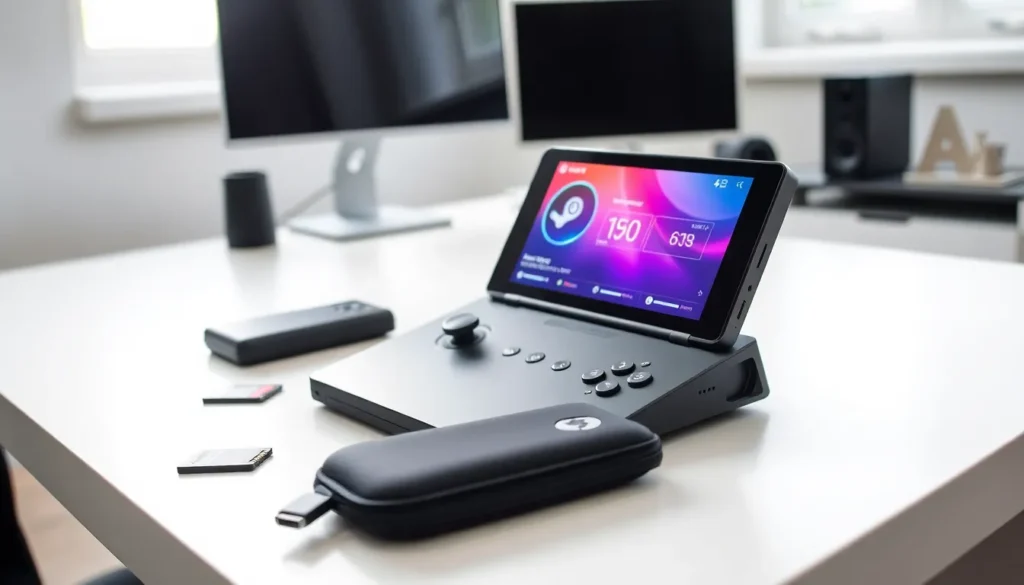

This steam deck guide covers everything new owners need to know. Valve’s handheld gaming PC has changed how people play their Steam libraries. It runs full PC games without a desktop or laptop. The device combines console portability with PC gaming flexibility. Whether someone just unboxed their Steam Deck or plans to buy one soon, this guide walks through setup, performance optimization, accessories, and battery tips. By the end, players will have a clear path to getting the most from their handheld.
Key Takeaways
- The Steam Deck is Valve’s handheld gaming PC that runs SteamOS and gives players access to their full Steam library on the go.
- Initial setup takes about 15 minutes—connect to Wi-Fi, sign in, update the system, and check game compatibility using Valve’s verification labels or ProtonDB.com.
- Optimize performance by setting native 1280×800 resolution, using medium presets, and enabling FSR for a free boost in demanding games.
- Lock frame rate to 40 FPS for smoother visuals and significantly better battery life on the Steam Deck’s 40Hz-capable display.
- Essential accessories include a microSD card for extra storage, a screen protector, and a 65W USB-C power bank for extended sessions.
- Extend battery life by lowering screen brightness, reducing TDP to 10-12 watts for lighter games, and disabling Wi-Fi and haptics when not needed.
What Is the Steam Deck?
The Steam Deck is a handheld gaming PC made by Valve. It runs SteamOS, a Linux-based operating system designed for gaming. Players can access their entire Steam library and play thousands of titles on the go.
Valve released the original Steam Deck in February 2022. The company launched the Steam Deck OLED in November 2023 with a brighter screen, better battery life, and faster Wi-Fi. Both versions use custom AMD APUs that handle AAA games surprisingly well.
The device features a 7-inch touchscreen (7.4 inches on the OLED model), full-sized controls, trackpads, and gyroscopic aiming. It weighs about 1.5 pounds. That’s heavier than a Nintendo Switch but lighter than most gaming laptops.
Steam Deck isn’t locked to Steam either. Users can install Windows, run emulators, or add other game launchers like Epic Games Store and GOG. This flexibility makes the steam deck guide essential reading for anyone wanting to push beyond the basics.
Setting Up Your Steam Deck
First-time setup takes about 15 minutes. Here’s what to expect:
- Power on the device by holding the power button for three seconds
- Connect to Wi-Fi using the touchscreen or controls
- Sign into a Steam account or create one
- Update the system when prompted (this may take several minutes)
- Download games from the Steam library
Valve’s verification system labels games as Verified, Playable, Unsupported, or Unknown. Verified titles work perfectly out of the box. Playable games might need minor tweaks like adjusting controls or text size. Unsupported games have known issues.
Pro tip: Check ProtonDB.com for community reports on how specific games run. Sometimes “Unsupported” games work fine with a few adjustments.
Users should also explore Desktop Mode by holding the power button and selecting it from the menu. This mode provides a full Linux desktop experience. It’s useful for installing non-Steam software, browsing the web, or managing files.
Optimizing Games and Performance
The Steam Deck handles most games well at medium settings. But optimization helps demanding titles run smoother.
Adjusting In-Game Settings
Start with these settings for better performance:
- Set resolution to 1280×800 (native)
- Use medium or high presets instead of ultra
- Disable motion blur and chromatic aberration
- Lower shadow quality first, it’s often the biggest performance hit
- Enable FSR (FidelityFX Super Resolution) for a free performance boost
Using Steam Deck’s Performance Overlay
Press the Quick Access button (three dots) and go to the Performance tab. Enable the performance overlay to see real-time FPS, GPU usage, and battery drain. This steam deck guide recommends keeping the overlay at level 2 for useful stats without screen clutter.
Frame Rate Limits and TDP
Locking the frame rate to 40 FPS creates a sweet spot. The Steam Deck’s screen supports 40Hz refresh, making 40 FPS feel smoother than an unlocked 45-50 FPS. It also saves significant battery power.
Users can limit TDP (thermal design power) to reduce heat and extend battery life. Try setting it to 10-12 watts for less demanding games. The device will run cooler and quieter.
Shader Pre-Caching
Steam downloads pre-compiled shaders for many games. This prevents stuttering during gameplay. Enable “Enable Shader Pre-Caching” in Steam settings to take advantage of this feature.
Essential Accessories and Add-Ons
The Steam Deck works great alone, but accessories improve the experience.
Carrying Case: The official case protects the device during travel. Third-party options like the JSAUX carry case offer extra storage pockets.
MicroSD Cards: Storage fills up fast. A 512GB or 1TB microSD card adds room for more games. Samsung, SanDisk, and Lexar make reliable options. Look for cards rated A2 and U3 for faster load times.
Screen Protector: A tempered glass protector guards against scratches. This matters especially for the LCD model, which lacks the OLED version’s etched anti-glare glass.
Docking Station: Valve’s official dock connects the Steam Deck to monitors, TVs, and peripherals via USB-C. Third-party docks from JSAUX and others cost less and work well.
External Controller: Some games feel better with a traditional controller. Any Bluetooth or USB controller works. Xbox controllers pair easily.
Power Bank: A 65W USB-C power bank extends play sessions on long trips. Anker and Baseus make good options that support fast charging.
This steam deck guide suggests starting with a microSD card and screen protector. Add other accessories based on how you use the device.
Tips for Extending Battery Life
Battery life ranges from 2 to 8 hours depending on the game. Demanding titles drain power quickly. Here’s how to squeeze more playtime from each charge.
Lower Screen Brightness: The screen uses significant power. Dropping brightness to 50-60% saves battery without hurting visibility indoors.
Cap Frame Rate at 40 FPS: As mentioned earlier, 40 FPS on a 40Hz screen looks smooth and uses less power than higher frame rates.
Reduce TDP: Setting TDP to 10-12 watts works for indie games and older titles. The system draws less power and produces less heat.
Turn Off Wi-Fi When Not Needed: Offline mode saves a bit of battery. Toggle Wi-Fi off during long gaming sessions.
Use Smaller Resolution Scaling: Some games support rendering at lower resolutions and upscaling. FSR helps here.
Disable Haptics: Vibration motors consume power. Turn them off in settings if they aren’t important.
Enable Half-Rate Shading: This experimental feature in the Performance menu renders certain effects at lower quality. It helps in some games.
The Steam Deck OLED gets roughly 30% better battery life than the LCD model. OLED technology uses less power for darker scenes. Playing games with dark visuals extends playtime further.