
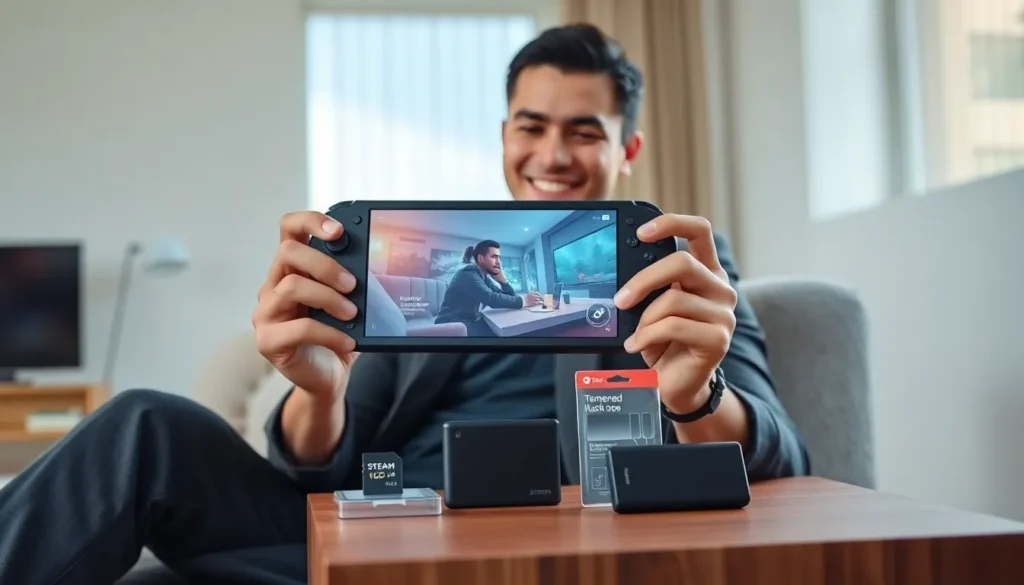

Steam Deck strategies can transform an average portable gaming session into something exceptional. Valve’s handheld PC has sold millions of units since its 2022 launch, and for good reason. It runs full desktop games on the go. But out of the box, the device doesn’t always perform at its best. Players who take time to adjust settings, manage storage, and pick the right accessories see major improvements. This guide covers practical tips that help gamers squeeze more performance, longer battery life, and smoother gameplay from their Steam Deck. Whether someone just unboxed their unit or has owned one for months, these strategies deliver real results.
Table of Contents
ToggleKey Takeaways
- Capping your frame rate to 40 FPS is one of the best Steam Deck strategies for balancing smooth gameplay with extended battery life.
- Lowering TDP to 10-12W for less demanding games can add 30-60 minutes of extra playtime per session.
- Enable FSR upscaling and create per-game profiles to optimize performance across your entire library.
- Always check ProtonDB ratings before purchasing games to avoid compatibility issues with Valve’s Proton layer.
- Expand storage with a high-quality A2/U3 microSD card—512GB options cost around $40-50 and load games nearly as fast as the internal SSD.
- Invest in accessories like a 45W+ power bank and a docking station to transform your Steam Deck into a versatile gaming setup for any situation.
Optimizing Performance and Battery Life
The Steam Deck offers impressive hardware, but default settings don’t always balance power and efficiency well. A few adjustments can extend play sessions and improve frame rates.
Frame Rate Limits
Players should cap their frame rate to 40 FPS for many games. This setting hits a sweet spot. The Steam Deck’s 60Hz screen can display 40 FPS smoothly because 40 divides evenly into the refresh rate. Games feel responsive, and battery drain drops significantly compared to running at 60 FPS. Users access this setting through the Quick Access Menu by pressing the three-dot button.
TDP and GPU Clock Adjustments
Advanced users can lower the Thermal Design Power (TDP) and GPU clock speed. Reducing TDP from 15W to 10-12W works well for less demanding titles like indie games or older releases. This change cuts heat output and extends battery life by 30-60 minutes per session. The GPU clock can drop from 1600MHz to 1200MHz for similar games without visible quality loss.
Screen Brightness
Screen brightness consumes substantial power. Dimming the display to 50-60% in indoor settings saves battery without hurting visibility. Players gaming outdoors may need higher brightness, but most indoor sessions don’t require maximum output.
Suspend and Resume
The Steam Deck’s suspend feature preserves battery better than leaving games running. Pressing the power button puts the device to sleep instantly. It uses minimal power in this state and resumes exactly where players left off. This Steam Deck strategy alone adds hours to overall battery life across multiple sessions.
Essential Settings for Better Gameplay
Beyond battery optimization, several settings improve how games look and feel on the Steam Deck.
FSR 1.0 Upscaling
AMD’s FidelityFX Super Resolution comes built into SteamOS. Players can enable FSR globally through system settings. The feature renders games at lower resolutions and upscales them, boosting performance while maintaining acceptable visual quality. Setting game resolution to 1152×720 or 1024×640 and enabling FSR produces good results in demanding titles.
Per-Game Profiles
The Steam Deck saves custom settings for each game. Players should create profiles for their most-played titles. A fast-paced shooter might need 60 FPS, while a turn-based RPG runs fine at 30 FPS with lower power consumption. Steam Deck strategies like this prevent constant manual adjustments.
Controller Layout Customization
Some games don’t support controllers by default. Steam Input lets players remap controls, assign touchpad functions, and configure gyro aiming. The back grip buttons can handle frequently used actions, keeping thumbs on the sticks during intense moments.
ProtonDB Compatibility
Not every game runs perfectly through Proton, Valve’s compatibility layer. Before buying, players should check ProtonDB.com for community reports. Games rated “Gold” or “Platinum” typically work well. “Borked” ratings indicate serious problems. This research prevents frustration and wasted money.
Managing Your Game Library Effectively
The Steam Deck’s internal storage fills up fast. Smart library management keeps favorite games ready while avoiding constant downloads.
MicroSD Cards
A high-quality microSD card expands storage affordably. Cards rated A2 with U3 speed classifications load games nearly as fast as the internal SSD. 512GB cards cost around $40-50 and hold 10-15 AAA games or dozens of indie titles. Players should format cards through SteamOS for best compatibility.
Shader Pre-Caching
Steam downloads pre-compiled shaders for many games. This process reduces stuttering during first-time play. Players should enable shader pre-caching in Steam settings and let downloads complete before starting new games. The feature works automatically but requires adequate storage space.
Collections and Categories
Organizing games into collections makes browsing easier on the small screen. Players can create categories like “Deck Optimized,” “Quick Sessions,” or “Story Games.” Steam’s dynamic collections automatically group titles by playtime, rating, or other criteria. These Steam Deck strategies reduce scrolling and help players find what they want faster.
Cloud Saves
Steam Cloud syncs save data between devices. Players who game on both PC and Steam Deck should verify cloud saves work for their titles. Some games require manual save transfers. Checking this before investing hours prevents lost progress.
Accessories and Add-Ons Worth Considering
The right accessories enhance comfort, protection, and functionality.
Carrying Cases
Valve includes a basic case, but third-party options offer better protection. Hard shell cases with extra pockets hold chargers, cables, and microSD cards. Players who travel frequently benefit from cases with stands for propped-up play during flights or hotel stays.
Docking Stations
Official and third-party docks connect the Steam Deck to monitors, keyboards, and mice. This setup turns the handheld into a desktop replacement for certain games. Docks with USB-C Power Delivery charge the device while playing. HDMI output reaches 4K on external displays, though games may not run at that resolution smoothly.
Screen Protectors
Tempered glass screen protectors prevent scratches without affecting touch response. Anti-glare versions reduce reflections during outdoor play. Installation takes minutes and costs under $15 for multi-packs.
External Controllers
Some players prefer traditional controllers for docked play. Any Bluetooth or USB controller works with SteamOS. PlayStation DualSense and Xbox controllers pair easily and offer familiar layouts. This Steam Deck strategy improves comfort during long TV gaming sessions.
Power Banks
A 45W or higher USB-C power bank extends play sessions beyond the internal battery. Players should choose banks that support Power Delivery for proper charging speeds. 20,000mAh capacity adds roughly 4-6 extra hours of gameplay depending on power settings.


