
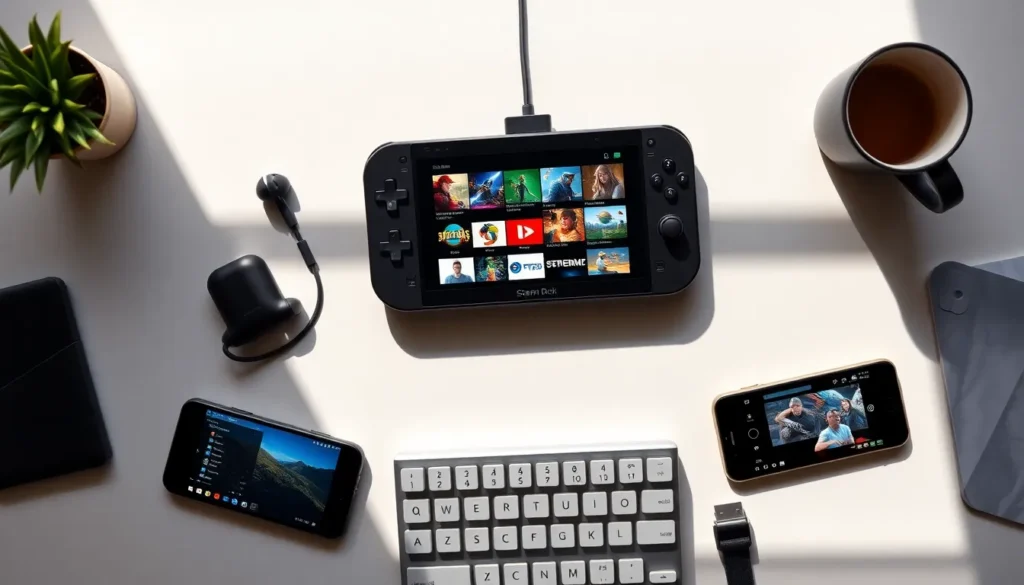

The Steam Deck does far more than play Steam games. This handheld PC offers flexibility that most portable consoles can’t match. With a few tweaks and some creativity, users can transform it into a retro gaming machine, a portable movie theater, or even a full desktop replacement.
These Steam Deck ideas help owners squeeze every bit of value from their device. Whether someone just unboxed their Deck or has owned one for months, there’s likely a use case they haven’t explored yet. Let’s dig into the best ways to expand what this little powerhouse can do.
Table of Contents
ToggleKey Takeaways
- The Steam Deck transforms into a retro gaming powerhouse using EmuDeck or RetroDeck, playing classics from NES to PlayStation 2 with ease.
- Remote Play lets you stream graphically demanding PC games to your Steam Deck, extending your library beyond what the handheld can run natively.
- Installing apps like Plex, VLC, and streaming services turns the Steam Deck into a portable media center for movies, shows, and music.
- Connect a dock, monitor, and peripherals to use your Steam Deck as a full Linux desktop for productivity tasks like writing, browsing, and coding.
- Limiting frame rates to 40 FPS and adjusting TDP settings can nearly double battery life without sacrificing smooth gameplay.
- Community resources like ProtonDB offer ready-made configurations and fixes to optimize performance for specific games.
Transform It Into a Retro Gaming Powerhouse
One of the most popular Steam Deck ideas involves turning it into a retro gaming machine. The device runs EmuDeck or RetroDeck with ease, giving users access to thousands of classic titles from consoles like the NES, SNES, PlayStation, and Sega Genesis.
Setting up emulation takes about 30 minutes. Users download their preferred emulation suite, configure controllers, and add their legally obtained ROM files. The Steam Deck’s controls map perfectly to older systems, and the 7-inch screen displays pixel art beautifully.
The performance handles everything up to PlayStation 2 and GameCube games without issues. Some users even run Wii and PS3 titles, though results vary by game. For anyone who grew up in the 80s or 90s, this setup feels like carrying an entire childhood game collection in a backpack.
A few tips make the experience better:
- Use EmulationStation DE for a unified game browser
- Add custom artwork and metadata for a polished library
- Map the back buttons to functions like quick save and load
- Adjust shader settings to add CRT scanlines for authenticity
Set Up Remote Play for Your Entire Game Library
Remote play ranks among the smartest Steam Deck ideas for anyone with a gaming PC at home. Steam Remote Play streams games from a desktop to the handheld, which means the Deck can run titles it couldn’t handle natively.
The setup process takes minutes. Both devices need Steam installed and logged into the same account. When connected to the same network, games installed on the PC appear in the Deck’s library with a “Stream” option.
This approach works especially well for graphically demanding games. Cyberpunk 2077 at max settings? No problem, the PC does the heavy lifting while the Deck displays the stream. Input lag stays minimal on a good home network, typically under 20 milliseconds.
Moonlight and Chiaki extend this concept further. Moonlight connects to NVIDIA GPUs for low-latency streaming, while Chiaki lets users stream their PlayStation 4 or PlayStation 5 library. Suddenly, the Steam Deck becomes a universal remote player for multiple platforms.
For best results, connect the home PC via ethernet and keep the Steam Deck within strong Wi-Fi range. A 5GHz connection handles most games smoothly, though competitive multiplayer titles might feel slightly delayed.
Use It as a Portable Media Center
The Steam Deck doubles as an excellent media device. This often-overlooked Steam Deck idea transforms the handheld into a portable entertainment hub for movies, shows, and music.
Installing media apps takes a few steps through Desktop Mode. Users can add Plex, Jellyfin, VLC, or streaming services like Netflix and Disney+ through the web browser or Linux app stores. The 1280×800 screen displays video content clearly, and the built-in speakers provide decent audio for casual viewing.
Plex works particularly well here. Anyone with a Plex server at home can stream their entire media library while traveling. The Deck handles transcoding requests efficiently, and offline sync lets users download content before trips.
For flights or areas without internet, VLC plays local video files without fuss. The Deck supports most common formats, including MKV, MP4, and AVI. A 512GB model holds roughly 100 hours of 1080p content alongside a reasonable game library.
Connect Bluetooth headphones for private viewing, or use a USB-C hub to output to hotel TVs. The Steam Deck adapts to different viewing situations better than dedicated streaming devices.
Turn It Into a Full Desktop Computer
Here’s a Steam Deck idea that surprises many new owners: it functions as a legitimate desktop computer. Connect a dock, monitor, keyboard, and mouse, and the Deck becomes a Linux workstation.
The KDE Plasma desktop environment comes pre-installed. Users get a full file manager, web browser, and access to thousands of Linux applications. Office work, web browsing, and light photo editing run smoothly. The AMD APU inside handles everyday tasks without breaking a sweat.
Some practical desktop uses include:
- Writing documents in LibreOffice
- Managing emails and calendars
- Light coding and development work
- Browsing with Firefox or Chrome
- Basic image editing in GIMP
The Steam Deck won’t replace a powerful workstation, but it handles 80% of what most people do on computers. Students find it especially useful, one device serves as both a gaming handheld and a assignments machine.
Official and third-party docks range from $30 to $100. Most include HDMI output, USB ports, and ethernet. The Deck outputs at up to 4K 60Hz when docked, though games run better at lower resolutions.
Optimize Performance With Custom Tweaks
Advanced Steam Deck ideas focus on getting better performance through software adjustments. Valve leaves plenty of room for users to fine-tune their experience.
The Quick Access Menu (QAM) offers per-game settings that dramatically affect battery life and performance. Limiting the frame rate to 40 FPS provides a sweet spot, games look smooth while battery life nearly doubles compared to 60 FPS. The 40Hz refresh rate option makes this framerate feel buttery.
TDP limits control how much power the processor draws. Many indie games and older titles run perfectly at 8-10 watts instead of the default 15. This simple change extends playtime from 2 hours to 4+ hours on a single charge.
Other performance tweaks worth exploring:
- FSR (FidelityFX Super Resolution) upscales lower resolutions with minimal quality loss
- Shader pre-caching eliminates stuttering in many games
- CryoUtilities improves memory management and swap file handling
- ProtonDB provides compatibility ratings and custom settings from other users
The Steam Deck community shares configurations through sites like ProtonDB and the Steam Deck subreddit. Before struggling with a game, check if someone already solved the problem. Often, a single launch option or Proton version change fixes issues completely.


