
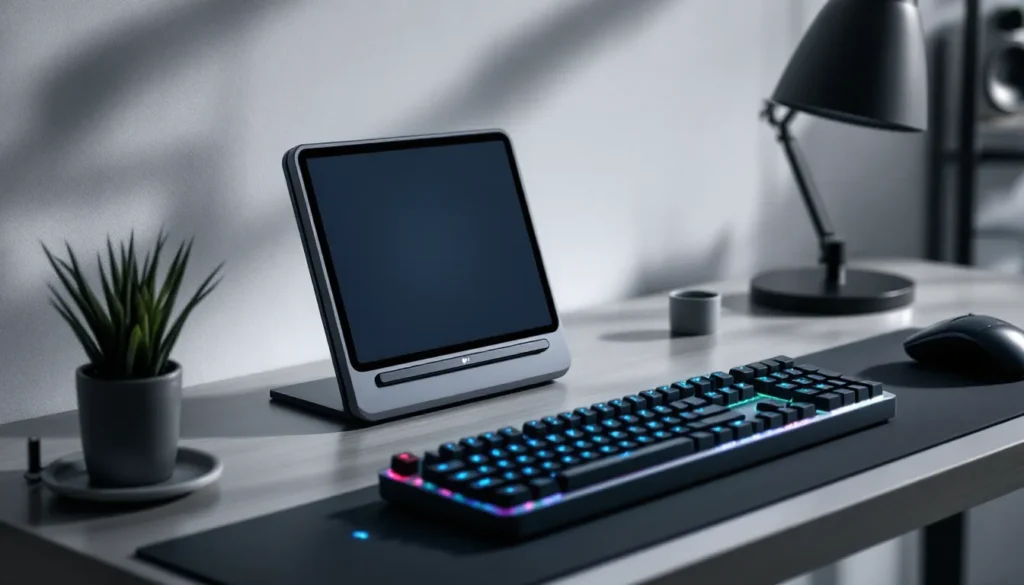

The Steam Deck revolutionized portable gaming, but anyone who’s spent hours typing commands, messaging friends, or navigating menus with the on-screen keyboard knows its limits. A solid physical keyboard transforms how you interact with your handheld PC, whether you’re playing turn-based strategy games that benefit from faster input, managing your Steam library, using your Deck as a productivity device, or streaming content to an audience. Finding the right Steam Deck keyboard means balancing portability, responsiveness, connectivity, and your specific use case. This guide breaks down what matters, which models deliver, and how to set everything up without the headaches.
Table of Contents
ToggleKey Takeaways
- A Steam Deck keyboard eliminates the limitations of on-screen input, enabling faster gameplay in strategy games, seamless menu navigation, and full productivity capabilities like document editing and web browsing.
- Wireless Bluetooth keyboards are ideal for Steam Deck users because they offer cable-free flexibility and 40–100+ hour battery life, while wired options suit stationary desk setups without charging concerns.
- Choose a 75–85% keyboard layout to balance portability and functionality, as ultra-compact models sacrifice the numpad while full-size boards add unnecessary bulk for travel.
- Mechanical switches with n-key rollover and 1000 Hz polling rates deliver superior gaming performance, while productivity users should prioritize ergonomics and full-size layouts with dedicated arrow keys and number pads.
- Keychron K2 Pro and Keychron K8 Pro represent the best value for Steam Deck users, offering reliable Bluetooth connectivity, durable aluminum frames, and mechanical switches starting around $70–120.
Why You Need a Keyboard for Your Steam Deck
The Steam Deck’s built-in controls handle most games brilliantly, but text input remains clunky. On-screen keyboards slow you down in strategy games, roguelikes with pause menus, and any title requiring chat. Beyond gaming, the Deck functions as a full Linux PC running SteamOS 3.0, capable of web browsing, email, document editing, and emulation. A keyboard unlocks that potential.
Competitive players benefit from faster command entry and loadout switching. Productivity users, those treating the Deck as a travel laptop, need tactile feedback and real typing speed. Even casual players appreciate the convenience of quickly adjusting game settings or launching emulators without fumbling through menus.
The Deck’s screen real estate (7 inches) means adding a keyboard doesn’t create the cumbersome setup of a traditional laptop dock. A compact wireless model sits beside the Deck in a bag or on a lap, providing desktop-like input without desktop-like bulk. For travelers, students, and anyone balancing work and play on a single device, a keyboard is less of a luxury and more of a practical necessity.
Top Features to Look For in a Steam Deck Keyboard
Choosing a keyboard for your Steam Deck requires understanding your priorities. A gaming-focused setup differs from a productivity-first setup, and portability concerns differ between home users and frequent travelers. Here’s what separates excellent choices from regrettable ones.
Wireless vs. Wired Connectivity
Wireless connectivity is king for Steam Deck users because it eliminates cable clutter and dock dependency. Bluetooth keyboards pair directly to the Deck, no adapters, no USB-A hub drama. The trade-off: battery management. Quality wireless keyboards last 40–100+ hours per charge depending on backlight intensity and key switch type. Rechargeable models with USB-C charging align perfectly with the Deck’s existing charging ecosystem.
Wired keyboards offer zero latency concerns and never need charging, making them ideal for stationary desk setups. But, connecting a wired keyboard to the Deck requires a USB-C hub or USB-A adapter, adding bulk to your portable setup. Wired makes sense if your keyboard lives permanently at a desk and rarely travels with the Deck. Wireless wins for flexibility.
Size and Portability Considerations
Steam Deck keyboards range from ultra-compact 60% layouts (roughly 12 inches wide) to full-size 104-key boards (19+ inches). The decision hinges on your use case.
Ultra-compact (60% or smaller): Weighing 300–600 grams, these fit easily in backpacks alongside the Deck. Chiclet or low-profile mechanical switches keep height minimal. Sacrifice: the numpad and arrow cluster, though function keys mitigate this. Best for travelers and lap gaming.
75–85% keyboards: The sweet spot for most Deck users. They’re portable enough to pack but retain arrow keys and dedicated function buttons. Weight ranges from 600–900 grams.
Full-size boards: Comfortable for extended desk sessions but impractical for portability. Reserved for users with dedicated gaming spaces.
Compatibility and Build Quality
Every Bluetooth keyboard pairs with SteamOS 3.0 without driver installation, compatibility is a non-issue. What matters is build quality. Mechanical switches (Cherry MX-style or Gateron) outperform membrane switches in durability and feedback, especially if you’re typing extensively. Aluminum frames withstand travel better than plastic, though they add weight and cost.
Battery life visibility is crucial. Keyboards with LED indicators showing charge level prevent mid-game surprises. Fast charging (reaching 80% in under an hour) beats slow trickle charging when you’re on the move.
Key rollover and polling rate matter for gaming. N-key rollover ensures every input registers even when pressing multiple keys simultaneously. A 1000 Hz polling rate (1 ms response time) is standard for gaming peripherals and noticeably snappier than 125 Hz (8 ms). Budget keyboards often cut corners here, check specifications before purchasing. Material choices like silicone or magnetic mechanical switches reduce noise without sacrificing feedback, important if you’re gaming in shared spaces like dorms or offices.
Best Keyboards for Steam Deck Gaming
The keyboard market sprawls across dozens of options, but certain models consistently deliver for Steam Deck users. Here’s a breakdown by category, focusing on real-world performance rather than marketing hype.
Ultra-Compact Wireless Keyboards
Keychron K2 Pro (60%): This dual-mode Bluetooth/USB keyboard weighs just 400 grams and measures 12.2 inches. Gateron mechanical switches offer satisfying feedback without mechanical noise typical of heavier gaming keyboards. Battery lasts 50+ hours. Price hovers around $70–90. It’s compact enough to fit in a small messenger bag, making it ideal for Steam Deck tips and techniques that involve portable gaming setups. The aluminum frame survives backpack compression better than plastic competitors.
Nuphy Air60: Similar footprint to the Keychron but with Nuphy’s custom switches, optimized for lower actuation force and quieter operation. Weighs 280 grams, making it one of the lightest options. Battery life hits 100+ hours on a full charge. Price: $90–110. If you need something that barely registers in your bag’s weight budget, this is the pick.
Anker Bluetooth Ultra-Slim Keyboard: For those prioritizing extreme portability and budget, Anker’s 10-inch Ultra-Slim uses chiclet switches and costs $30–40. It’s thin enough to fit in a laptop sleeve alongside the Deck. Tradeoff: typing feel is mushy compared to mechanical switches, and battery life maxes out at 30 hours. Acceptable for occasional menu navigation, not ideal for extensive typing sessions.
Full-Size Mechanical Keyboards
Keychron K8 Pro (87%): An 87-key layout strikes balance between portability and functionality. Weighs about 850 grams. Keychron’s aluminum build quality rivals keyboards twice the price. RGB backlighting is fully customizable, though turning it off extends battery life to 80+ hours. Price: $100–120. This is the recommendation for users wanting a “real” keyboard experience without full-size bulk. The Deck pairs reliably via Bluetooth, and the aluminum frame looks professional enough for working in coffee shops or libraries.
Drop Alt (65%): Designed by gaming community members, the Drop Alt offers a 65-key layout with arrow keys and exceptional build quality. Aluminum stabilizers and QMX gasket mounting reduce key noise significantly. Weighs 700 grams. Price $150–200. This keyboard appeals to users willing to spend more for premium feel and aesthetics. It’s visibly different from generic gaming keyboards, which matters if you’re carrying it around frequently.
Corsair K70 RGB (Full-size): For users with stationary desk setups, the K70 RGB delivers top-tier build quality, Cherry MX mechanical switches, and aluminum body construction. Weighs 1,200 grams (heavy, but not a factor if it never leaves your desk). USB connection only. Price: $150–200. Overkill for portable Deck use, but excellent if your keyboard rarely travels. Recent reviews from tech review sites consistently praise its durability in gaming environments.
Budget-Friendly Options
RK61: A 60% wireless keyboard using Outemu mechanical switches (similar to Cherry MX but cheaper). Battery lasts 30–40 hours. Price: $25–40. Build quality is basic, plastic frame, questionable stabilizers, but it functions reliably for casual users. Ideal if you want to test whether a keyboard improves your Deck experience before investing $100+.
Motospeed CK62: 62-key Bluetooth keyboard with RGB backlighting and outemu switches. Costs $35–50. Battery life reaches 40+ hours. Build quality slightly exceeds the RK61, with better stabilizers and a more responsive typing feel. A solid middle ground between absolute budget and premium pricing.
Apple Magic Keyboard: If you already own Apple hardware, the Magic Keyboard pairs effortlessly via Bluetooth to Steam Deck. Weighs just 230 grams. Battery lasts weeks. Price: $100–150. Typing feel is excellent for productivity but suboptimal for gaming, low travel distance and minimal tactile feedback. Useful as a travel keyboard if you work across Apple and Linux devices, but gamers shouldn’t default to it.
How to Connect and Configure Your Keyboard
Once you’ve selected your keyboard, setup takes minutes. The process differs slightly based on connection type, but SteamOS 3.0 handles both seamlessly.
Bluetooth Pairing Process
Enable Bluetooth on your Steam Deck: From the home screen, press the Steam button, navigate to Settings > Bluetooth, and toggle it on. The Deck becomes discoverable automatically.
Activate pairing mode on your keyboard. Most Bluetooth keyboards enter pairing mode by holding a dedicated key (often labeled “Pair” or a Bluetooth icon) for 3–5 seconds. Check your keyboard’s manual if unsure, pairing instructions vary by manufacturer.
Your keyboard should appear in the Deck’s Bluetooth device list within 10 seconds. Select it to pair. A successful connection triggers a confirmation notification. The keyboard now connects automatically whenever you power it on and bring it within Bluetooth range (~30 feet indoors).
If pairing fails, restart Bluetooth on the Deck (toggle off, then on) and retry. Most pairing failures resolve on the second attempt.
USB Connection Setup
Wired keyboards or USB adapters for wireless models connect via the Deck’s USB-C port. Attach a USB-C hub if your keyboard uses USB-A (the standard rectangular connector). Alternatively, use a USB-C to USB-A adapter.
The Deck recognizes wired keyboards instantly, no pairing required. Typing works immediately after plugging in. If the keyboard doesn’t respond, check that your USB hub has adequate power delivery (most gaming keyboards draw minimal power, but it’s worth verifying).
For optimal stability, avoid cheap USB hubs. Anker and Belkin USB-C hubs with power delivery are reliable choices. Budget hubs sometimes drop connections under load or fail to power the keyboard properly.
Optimizing Keyboard Settings in SteamOS
SteamOS 3.0 includes basic keyboard settings accessible through the desktop environment. Here’s how to customize input behavior:
Switch to Desktop Mode: Hold the Power button until a menu appears, then select “Switch to Desktop.” This enters the full Linux desktop environment.
Open Settings: Click the application menu (bottom left) and search for “Keyboard” settings. Alternatively, navigate through the Settings application directly.
Key customization options include:
Repeat Delay and Rate: Adjust how long you must hold a key before it repeats and how quickly it repeats thereafter. Faster repeat rates benefit in-game command input: slower rates reduce accidental repeats during typing.
Key Remapping: Advanced users can remap keys using xmodmap or keyboard configuration files. This is optional and unnecessary for most players, but available if you want to customize button functions.
Keyboard Layouts: SteamOS supports QWERTY, Dvorak, Colemak, and other layouts. Switch layouts via the input menu if you prefer an alternative to QWERTY.
Return to Game Mode: After configuring, press the Power button and select “Switch to Game Mode” to return to the gaming interface. Your settings persist across sessions.
In-game keyboard behavior can also be customized within individual game settings. Some games allow rebinding keys, sensitivity adjustments, and input device selection. Always check a game’s input menu if keyboard behavior feels off, game-level settings override system defaults.
For extensive configuration, Steam Deck strategies often include desktop environment customization, which unlocks additional input control via command-line tools. Most users never need this level of customization, but it’s available for power users.
Gaming vs. Productivity: Choosing the Right Keyboard
The “best” keyboard depends entirely on what you’re doing with your Steam Deck. A gaming-focused keyboard differs meaningfully from a productivity keyboard, and mismatching your keyboard to your use case creates frustration.
Gaming Keyboards prioritize response time and tactile feedback. Mechanical switches with low actuation force (45–50 grams) allow rapid, light keypresses without finger fatigue during extended play sessions. Gaming keyboards benefit from n-key rollover and high polling rates (1000 Hz). Backlighting, while non-essential, helps visibility in dimly lit environments. Sound doesn’t matter in single-player games, but noise isolation becomes critical in shared spaces like dorms. Compact layouts (60–65%) appeal to gamers valuing portability and lap usability.
Recommendations for gaming: Keychron K2 Pro, Nuphy Air60, or Drop Alt. All deliver mechanical feedback, reliable connectivity, and lightweight designs suitable for portable gaming.
Productivity Keyboards prioritize typing comfort and ergonomics. Keys should offer clear tactile feedback without being too clicky (noise is distracting in quiet offices). Key travel (the distance a key presses down) should feel natural, not too shallow for speed, not too deep for fatigue. Layout matters more than gaming keyboards: a full-size or 87-key layout with dedicated arrow keys, number pad, and function keys accelerates productivity work. Wired connections eliminate battery anxiety during work sessions. Aesthetic appeal and build quality signal professionalism when working in public spaces.
Recommendations for productivity: Keychron K8 Pro, Corsair K70 RGB, or Apple Magic Keyboard. All offer satisfying typing experiences and reliable build quality.
Hybrid Users (gaming + productivity) should prioritize a mid-range option like the Keychron K8 Pro or Drop Alt. These deliver acceptable performance in both contexts without sacrificing too much in either. A wireless 87-key mechanical keyboard covers most needs, and switching between gaming and work involves only changing software settings, not hardware.
Consider your actual use case before purchasing. If you play strategy games 80% of the time and check email 20%, prioritize gaming specs. If you’re using the Deck as a portable workstation with occasional gaming, lean productivity. Mismatched expectations lead to regret, gamers buying productivity keyboards complain about lag, productivity users buying gaming keyboards complain about noise and lack of numpad.
For more specific advice tailored to your Steam Deck setup, Steam Deck ideas explores unconventional use cases that might inform keyboard selection. Understanding your Deck’s role in your workflow clarifies which keyboard features matter most.
Common Issues and Troubleshooting Tips
Even reliable keyboards occasionally misbehave. Here’s how to diagnose and fix the most frequent problems Steam Deck users encounter.
Keyboard Won’t Pair or Disconnects Randomly
Bluetooth interference is the culprit 90% of the time. Other devices using the 2.4 GHz frequency (WiFi routers, other Bluetooth devices, microwaves) create signal noise. Troubleshooting: Move closer to the Deck (within 10 feet), turn off other Bluetooth devices nearby, or switch to a different WiFi channel on your router.
If interference isn’t the issue, restart the Deck entirely (not just Bluetooth toggle). This clears any pairing cache issues. Then re-pair the keyboard from scratch.
For wired keyboards, faulty USB hubs are often the culprit. Test the keyboard with a different hub or directly connected (if your keyboard uses USB-C). A bad hub won’t reliably power the keyboard, causing connection dropouts.
Keys Register Late or Not at All
First, check polling rate. Open your keyboard manufacturer’s software on a desktop PC and confirm the polling rate is set to 1000 Hz (1 ms response time). Some keyboards allow polling rate adjustment: 125 Hz polling causes noticeable input lag in games.
For Bluetooth keyboards specifically, distance and obstacles matter. Walls, metal objects, and large distances degrade signal strength. Ensure the keyboard is within 15 feet of the Deck with clear line-of-sight.
If an individual key is stuck, clean it. Dust and debris under the keycap prevent proper registration. For mechanical keyboards, gently remove the keycap (use a keycap puller if available) and clean around the switch with compressed air or a small brush. Reassemble and test.
Typing Feels Sluggish or Unresponsive in Games
This usually indicates the Deck’s input is detecting the keyboard as a “text input” device rather than a game input device. Some games don’t recognize Bluetooth keyboards as valid input sources, falling back to the Deck’s native gamepad controls.
Solution: In the game’s input settings, explicitly select “keyboard” as the primary input device. Not all games expose this option, but most modern titles and many indie games do.
Alternatively, use a wired connection. Wired keyboards are recognized more reliably by all software because they emulate traditional USB HID (Human Interface Device) peripherals.
Battery Drains Quickly
RGB backlighting is the biggest power drain. Disable or reduce brightness significantly. Most quality wireless keyboards jump from 30-40 hour battery life (with RGB off) to 80+ hours. If your keyboard has a power-saving mode, enable it. Some Keychron and Nuphy keyboards feature configurable sleep timers that disable the keyboard after inactivity, activating this extends battery life dramatically.
If battery life is abnormally short (dying within 10 hours), the keyboard may have a defect. Rechargeable batteries degrade over time, but new keyboards shouldn’t drain quickly. Contact the manufacturer for a replacement.
Key Chatter (Single Keypress Registers as Multiple)
This happens when a mechanical switch’s contact points bounce multiple times during a single press. Solutions:
Clean the affected switch with compressed air, as debris can cause bouncing.
Wait 50–100 keypresses. New mechanical keyboards sometimes exhibit minor chatter that resolves after break-in.
If chatter persists, the switch is faulty. Some keyboards (especially high-end mechanical boards) use hot-swappable switches, allowing easy replacement. Budget keyboards often use soldered switches, requiring professional repair.
Chatter is rare in quality keyboards but common in budget models under $40. It’s worth spending the extra $30–50 for reliability.
Setup Complexity or Need for Advanced Configuration
For users struggling with pairing or configuration, resources like How-To Geek provide detailed Linux input device guides, and Digital Trends periodically publishes Steam Deck accessory setup tutorials. Most keyboard issues resolve without external help, but guides specific to your keyboard model (check the manufacturer’s website) offer manufacturer-supported troubleshooting steps.
If your keyboard came with proprietary software (like RGB customization apps), that software runs only on Windows or macOS, not on the Deck itself. Configure it on a desktop machine, save your settings, then use the keyboard on the Deck without needing the software.
For further assistance on optimizing your entire Deck setup, Steam Deck tools covers essential accessories and configuration techniques that complement keyboard setup.
Conclusion
A keyboard transforms your Steam Deck from a gaming device into a genuine portable workstation. Whether you’re commanding armies in strategy games, typing in chat, or working on documents during travel, the right keyboard bridges the gap between the Deck’s handheld form factor and desktop productivity.
Prioritize wireless Bluetooth connectivity for flexibility, mechanical switches for satisfying feedback, and a compact form factor for portability. The Keychron K2 Pro and Keychron K8 Pro represent the best overall values, delivering quality at reasonable prices. Budget-conscious users should test cheaper options like the RK61, while power users willing to invest can explore premium boards like the Drop Alt.
Setup is straightforward, pair via Bluetooth or plug into a USB hub, and SteamOS handles input seamlessly without driver installation. Common issues like disconnection or input lag resolve through troubleshooting steps covered above. Choose your keyboard based on actual use case (gaming, productivity, or hybrid), and avoid overpaying for features you’ll never use.
Your Steam Deck deserves input hardware that matches its versatility. A quality keyboard unlocks potential and improves daily usability significantly. With the guidance above, you’ll find a keyboard that feels right for your setup, your playstyle, and your budget.


