
Learning how to Steam Deck doesn’t have to feel overwhelming. Valve’s portable gaming device puts a full PC gaming library in your hands, but getting started requires some basic know-how. This guide walks through everything new owners need, from initial setup to performance tweaks. Whether someone just unboxed their Steam Deck or wants to get more from their device, these steps make the process simple. By the end, users will play games, customize settings, and discover features they didn’t know existed.
Key Takeaways
- Charge your Steam Deck fully before first use and complete the setup wizard to connect Wi-Fi, sign in, and install system updates.
- Use the Quick Access menu to adjust brightness, frame rates, and performance settings without leaving your game.
- Lock games to 40fps at 40Hz refresh rate to extend battery life by 1-2 hours while maintaining smooth gameplay.
- Expand storage with a microSD card (up to 2TB supported) since modern games quickly fill internal storage.
- Enable Desktop Mode to install non-Steam games, emulators, and apps like Heroic Games Launcher for Epic and GOG titles.
- Take advantage of gyro controls, cloud saves, and external device support to enhance your Steam Deck gaming experience.
Getting Started With Your Steam Deck
The Steam Deck arrives partially charged, but users should plug it in before the first power-on. A full charge takes about two hours. Once powered up, the device displays Valve’s setup wizard.
Initial Setup Steps
First, users connect to Wi-Fi by selecting their network and entering the password. The Steam Deck supports both 2.4GHz and 5GHz networks. Next, they sign into their Steam account. Two-factor authentication codes arrive via email or the Steam mobile app.
After login, the Steam Deck downloads any available system updates. These updates can take 10-30 minutes depending on connection speed. Users shouldn’t skip this step, updates fix bugs and add features.
Understanding the Hardware
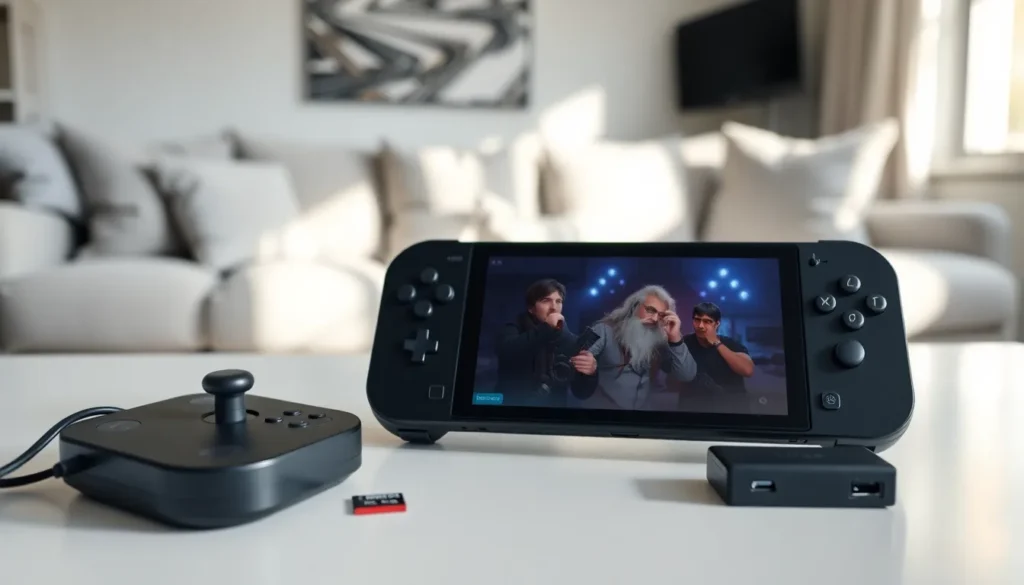
The Steam Deck features a 7-inch touchscreen, two thumbsticks, a D-pad, ABXY buttons, and four back grip buttons. Two trackpads sit below the thumbsticks. These trackpads work great for games designed for mouse input.
The device has three USB-C ports (one on top, one on bottom through the dock) and a microSD card slot. Most users expand storage with a microSD card since internal storage fills quickly with modern games. The Steam Deck reads cards up to 2TB.
Navigating the Steam Deck Interface
The Steam Deck runs SteamOS, a Linux-based operating system with a controller-friendly interface. Users move through menus using the thumbsticks or D-pad and select items with the A button.
Main Menu Overview
The home screen shows recently played games and the Steam library. A sidebar appears when users press the Steam button on the left side of the device. This sidebar contains:
- Library – All owned games
- Store – Browse and purchase new games
- Downloads – Track installation progress
- Friends – View online friends and send messages
- Media – Screenshots and recordings
- Settings – System and game options
The Quick Access menu opens with the button marked “…” on the right side. This menu controls brightness, volume, Wi-Fi, Bluetooth, and performance overlays without leaving a game.
Desktop Mode
Holding the power button reveals an option called Desktop Mode. This transforms the Steam Deck into a standard Linux desktop. Users can install non-Steam applications, browse the web, or use productivity software here. To return to Gaming Mode, they double-click the “Return to Gaming Mode” icon on the desktop.
Installing and Playing Games
The Steam Deck plays thousands of games from users’ existing Steam libraries. Valve rates each game’s compatibility using a verification system.
Steam Deck Compatibility Ratings
- Verified – Works perfectly on Steam Deck
- Playable – Works with minor issues or manual tweaks
- Unsupported – Doesn’t work or has major problems
- Unknown – Not yet tested
Many “Unsupported” games actually run fine. Users should check community forums and ProtonDB.com for real-world compatibility reports.
Installing Games
To install a game, users open their Library and select a title. They press the Install button, choose an installation location (internal storage or microSD card), and wait. Large games like AAA titles may need 50-100GB of space.
The Steam Deck downloads games in the background while users play other titles. Sleep mode pauses downloads by default, but users can change this in settings.
Non-Steam Games
The Steam Deck runs games from other stores too. In Desktop Mode, users install launchers like Heroic Games Launcher for Epic and GOG games. Emulators for retro consoles also work well. EmuDeck provides a simple setup tool for emulation.
Customizing Settings for Better Performance
Every game performs differently on Steam Deck. The device lets users adjust settings per-game or apply global defaults.
Frame Rate and Refresh Rate
The Steam Deck’s screen supports 40Hz, 60Hz, and variable refresh rates. Many users lock games to 40fps with a 40Hz refresh rate. This setting provides smooth gameplay while saving battery, often adding 1-2 hours of playtime compared to 60fps.
To adjust these settings, users open the Quick Access menu during gameplay and select the Performance tab. The frame rate limiter offers options from 15fps to 60fps.
TDP and GPU Clock Speed
Advanced users can limit the processor’s power draw (TDP) between 3-15 watts. Lower TDP means longer battery life but reduced performance. The GPU clock speed slider sets a maximum frequency. These options appear in the Performance menu when Advanced View is enabled.
Game-Specific Profiles
The Steam Deck saves performance settings for each game automatically. A 2D indie game might run at 3 watts while a demanding title needs the full 15 watts. Users toggle “Use per-game profile” in the Performance menu to enable this feature.
FSR Upscaling
AMD’s FidelityFX Super Resolution (FSR) renders games at lower resolutions and upscales them. This improves frame rates significantly. Users enable FSR in the Performance menu and set their preferred sharpness level.
Essential Tips and Tricks
These Steam Deck tips help users get more from their device.
Extend Battery Life
- Lower screen brightness to 50% or less
- Use 40fps frame rate limit
- Disable Wi-Fi when playing offline games
- Enable half-rate shading for less demanding titles
- Keep the device updated, Valve regularly improves power management
Manage Storage Wisely
The Steam Deck compresses shader caches and game files automatically. Users can move games between internal storage and microSD cards through the Storage settings. Shader cache files sometimes grow large, clearing them occasionally frees space without affecting saved games.
Use Gyro Controls
The Steam Deck includes gyroscope sensors for motion aiming. This feature works especially well in shooters. Users enable gyro in Steam Input settings and assign activation to a button press or trigger pull.
Connect External Devices
The official Steam Deck Dock adds HDMI output, Ethernet, and USB ports. Third-party USB-C hubs work too. The device supports Bluetooth controllers, keyboards, and mice. Users can play on a TV or monitor while the Steam Deck provides the processing power.
Enable Cloud Saves
Steam Cloud syncs save files between devices. A game started on the Steam Deck continues on a desktop PC, and vice versa. Users verify Cloud Save status in each game’s properties.