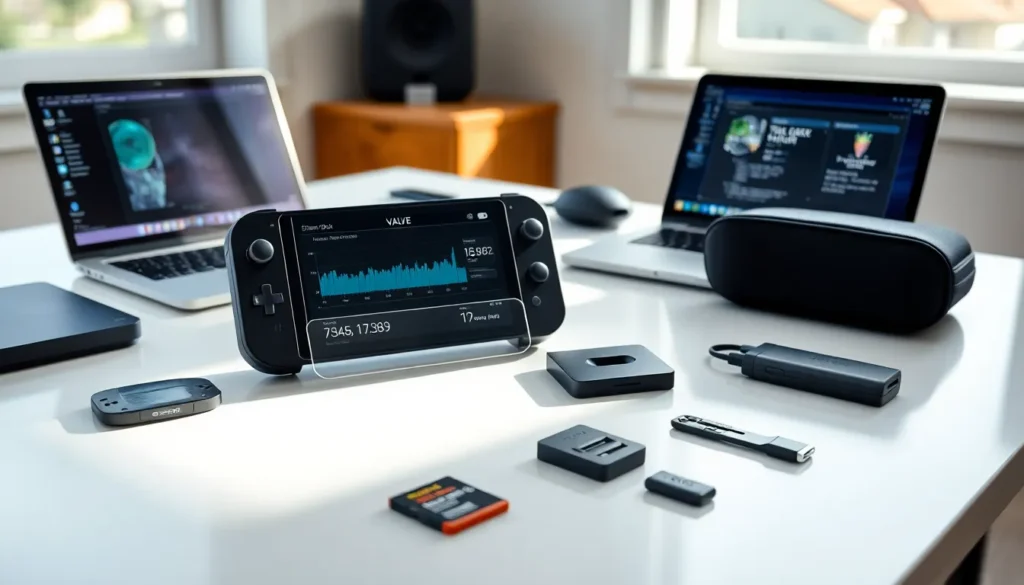

Steam Deck tools can transform a standard handheld gaming experience into something far more powerful. Valve’s portable PC offers impressive performance out of the box, but the right software and accessories unlock its full potential. Whether someone wants to monitor frame rates, run classic Nintendo games, or expand their storage, specific tools exist for every task. This guide covers the essential Steam Deck tools, from performance utilities to physical accessories, that every owner should know about.
Key Takeaways
- Steam Deck tools like CryoUtilities and PowerTools optimize performance, offering smoother gameplay and extended battery life.
- EmuDeck simplifies emulation setup, letting users play games from NES to Nintendo Switch with minimal configuration.
- Physical accessories like docks, microSD cards, and screen protectors enhance functionality, storage, and protection for your Steam Deck.
- Desktop Mode utilities such as Bottles and KDE Connect transform the Steam Deck into a versatile Linux PC for productivity tasks.
- File management tools like Filelight and Syncthing help users organize storage and sync files across multiple devices effortlessly.
Must-Have Software Tools for Steam Deck
The Steam Deck runs SteamOS, a Linux-based operating system that supports a wide range of software tools. These applications help users get more from their device, whether they’re tweaking performance settings or playing games from other platforms.
Performance Monitoring and Optimization
Performance monitoring tools give users real-time data about their Steam Deck’s behavior. The built-in Performance Overlay (accessible via the Quick Access Menu) displays frame rate, CPU/GPU usage, battery drain, and thermals. For most users, this native tool provides enough information.
Those who want deeper control often turn to CryoUtilities. This community-developed tool optimizes swap file settings and memory management. Many users report smoother gameplay and better battery life after running it. Installation takes about five minutes through Desktop Mode.
PowerTools is another popular option. It runs as a Decky Loader plugin and lets users adjust CPU cores, GPU clock speeds, and thermal limits per game. Someone playing a demanding title like Cyberpunk 2077 might max out settings, while a lighter game could run with reduced power draw for extended battery life.
Emulators and Game Launchers
The Steam Deck excels at emulation. EmuDeck stands out as the most popular all-in-one solution. It installs and configures multiple emulators automatically, including RetroArch, Dolphin, PCSX2, and Yuzu. Users can play games from NES to PlayStation 2 to Nintendo Switch with minimal setup.
For non-Steam games, Heroic Games Launcher provides access to Epic Games Store and GOG libraries. It works well on Steam Deck and integrates with SteamOS’s controller support. Players no longer need to choose between storefronts.
Lutris offers another option for running Windows games and applications. It handles installation scripts and Wine configurations automatically. Some users prefer it for older PC titles that don’t appear on Steam.
These Steam Deck tools expand the device’s library far beyond what Valve offers directly.
Physical Tools and Accessories
Software handles one side of the equation. Physical Steam Deck tools address comfort, protection, and functionality.
A carrying case tops the priority list. The official case included with every Steam Deck provides solid protection, but aftermarket options offer more storage pockets for chargers and accessories. JSAUX and Tomtoc make popular alternatives.
Screen protectors prevent scratches during travel. Tempered glass options from brands like amFilm cost under $15 and install in minutes. They don’t affect touch sensitivity or display quality.
For extended sessions, a stand or dock makes a significant difference. The official Steam Deck Dock provides USB-C connectivity, HDMI output, and Ethernet. Third-party docks from JSAUX deliver similar functionality at lower prices. Users can connect their Steam Deck to a TV or monitor for a console-like experience.
MicroSD cards expand storage instantly. The Steam Deck’s SD card slot supports cards up to 1TB. SanDisk Extreme and Samsung EVO Select cards offer fast read speeds that minimize game load times. A 512GB card typically costs around $40-50 in late 2024.
Some users also invest in replacement thumbstick caps or trigger extenders for improved ergonomics. These small accessories customize the feel without permanent modifications.
Desktop Mode Utilities
Desktop Mode turns the Steam Deck into a full Linux PC. Several Steam Deck tools make this experience more practical.
Flatseal manages permissions for Flatpak applications. It gives users control over which apps can access files, networks, and system resources. Security-conscious owners appreciate this granular control.
Bottles runs Windows applications through Wine with a user-friendly interface. It works well for productivity software, older games, and utilities that lack native Linux versions.
For web browsing, Firefox comes pre-installed, but Google Chrome can be added through Discover. Both browsers support extensions and sync with existing accounts.
KDE Connect links the Steam Deck to Android phones. Users can share files, see notifications, and control media playback across devices. It’s particularly useful when the Steam Deck serves as a secondary computer.
Text editing and note-taking tools like Kate and Obsidian round out a productive Desktop Mode setup. These Steam Deck tools prove the device isn’t just for gaming.
Storage and File Management Tools
Managing files on Steam Deck requires the right tools. The device’s internal storage fills quickly with modern game sizes.
Filelight visualizes disk usage with an interactive chart. Users can identify which games or files consume the most space. It makes cleanup decisions much easier.
Syncthing handles file synchronization between the Steam Deck and other computers. Game saves, screenshots, and documents stay updated across devices without cloud service subscriptions.
For transferring files from Windows PCs, Warpinator (or its Windows counterpart Winpinator) provides simple drag-and-drop transfers over local networks. No cables or USB drives needed.
The built-in Dolphin file manager handles most daily tasks. It supports tabs, split views, and network locations. Power users can add plugins for additional functionality.
Steam itself offers built-in tools for moving games between internal storage and SD cards. Users access this through game properties in the library. The process takes a few minutes depending on game size.
These storage and file management Steam Deck tools keep the device organized and running efficiently.